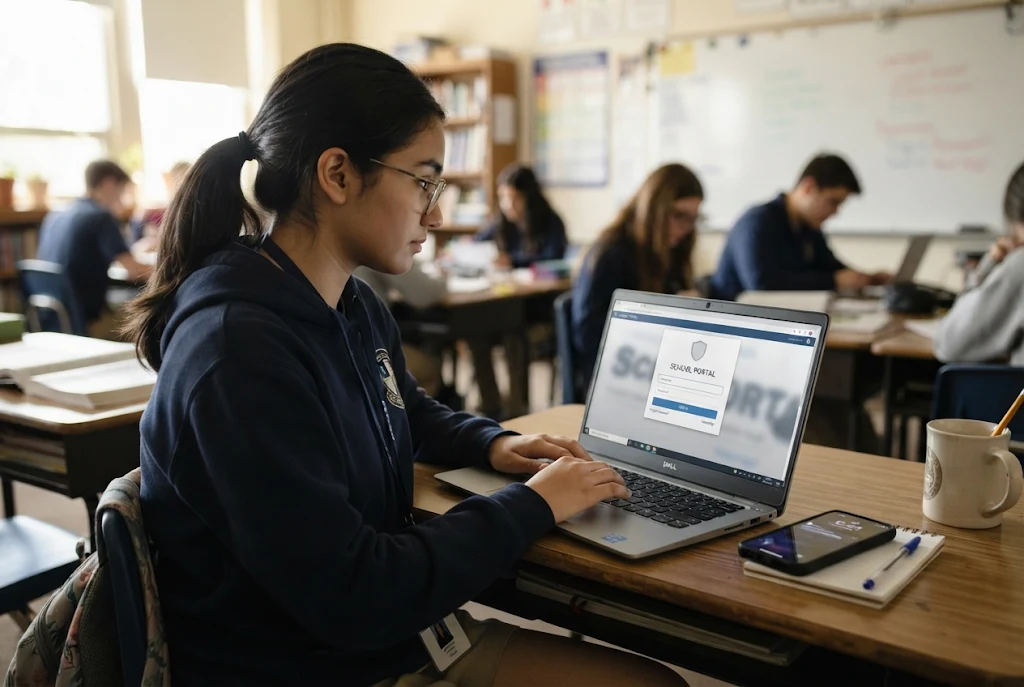
To sign in to Colegia, go to colegia.org and click Student/Staff Log In. Enter your school-issued email address, click Sign In, then type your password. On your very first login, expect to set up security questions and replace the temporary password you were given. After that, you land on a dashboard showing the apps your school has connected, such as Canvas, your email, or your student records.
That’s the short version. The rest of this guide covers what to have ready before you start, what staff should know, how the mobile app fits in, and what to do when the login screen refuses to cooperate, which is where most people actually get stuck.
What Colegia Is and Why Your School Uses It
Colegia (often written Colēgia) is a single sign-on portal. Instead of keeping separate passwords for email, course software and grade records, you log in once and open everything from one dashboard.
It’s used mainly by US charter schools and some online and dual-enrollment programs. Doral College in Florida, for example, describes it as a single sign-on hub that gives students and instructors one place to reach courses, student records, email and notifications, as explained on its course access page.
One thing to keep in mind: every school sets up its own version. The apps you see, your email format and even your first-time password rules depend on your school, not on Colegia itself.
Colegia or Colegio?
Plenty of people search for “Colegio” by mistake, since it’s the Spanish word for school. The portal is spelled with an “a.” If a site spelled “Colegio” asks for your school password, close it. You’re likely on the wrong page.
What You Need Before You Sign In
Most login trouble comes from a missing detail, not a broken system. Check this list first.
| What you need | Where it usually comes from |
|---|---|
| School-issued email address | Your school office, teacher, or welcome email |
| Temporary or current password | Your school, or the email you got after enrolling |
| Student ID number | Your school records (useful if you need a reset) |
| An up-to-date browser or the app | Chrome, Safari, Edge or Firefox, or the Colēgia app |
If you enrolled in an online program and never got a physical school email, check your inbox for the message sent after your application was approved. Academica’s quickstart guide notes that this message holds the login email for students without a campus-issued address.
How to Sign In as a Student
Here’s the full process, step by step.
- Open your browser and type colegia.org directly into the address bar. Don’t rely on a search ad or a random link.
- Click Student/Staff Log In.
- Enter your school-issued email address and click Sign In.
- Enter your password and click Sign in again.
- If this is your first time, answer the security questions and set a new password when prompted. Then click Save and Continue.
- Your dashboard opens. Click any app tile to launch it without logging in again.
Your first login, explained
The first sign-in takes a little longer because the portal makes you replace the temporary password. Pick something you’ll remember but others can’t guess, and write your security answers somewhere safe. Those answers matter later if you get locked out.
Younger students will usually need a parent or teacher sitting with them for this step.
Adding apps to your dashboard
Some schools don’t pin every app for you. At Doral College, for instance, students click the Apps button, filter by grade level, and tap the small + icon to add Canvas and the student information system to their dashboard. If you can’t find a tool your teacher mentioned, look in the Apps menu before assuming your account is broken.
Online programs may show different tools. Academica’s quickstart lists Maestro for submitting course requests and Cosmos for opening current courses.
How Staff and Teachers Sign In
Staff use the same Student/Staff Log In button and the same steps. The difference is in what loads afterward: teachers and office staff typically see the tools tied to their role, such as gradebooks or the learning management system.
A few practical points for staff:
- Use your staff email, not a personal one. Accounts are tied to the address your school created.
- Staff passwords are handled locally. If you can’t sign in, your school’s IT contact is usually the fastest route.
- Helping students with resets: Support guidance from one Colegia-connected program asks staff to copy the student or parent on reset requests so the new password reaches them faster.
Signing In on the Colēgia App
If you’d rather use a phone or tablet, there’s an official app. As of November 2026, the App Store lists it under the developer Colegia LLC, requiring iOS or iPadOS 15 or later. Its App Store listing mentions access to assignments, class bulletins, virtual classrooms, group chats and school news.
You sign in with the same email and password you use on the website. On Android, search the Play Store carefully and confirm with your school which app it recommends before entering your details.
The app works well for checking announcements quickly. For long assignments or uploading files, many students still find the website on a laptop easier.
Website or app: which should you use?
| Task | Better on | Why |
|---|---|---|
| First-time login and password setup | Website | Bigger screen makes security questions and new passwords easier to get right |
| Checking class bulletins or school news | App | Faster to open on the go |
| Writing or uploading assignments | Website | Easier file handling and typing on a full keyboard |
| Joining a virtual class | Either | Use whichever your teacher recommends |
A good rule: do your first sign-in on a computer, then add the app once you know your password works.
Signing In on a School Chromebook or Shared Computer
Many students sign in on a school-issued Chromebook or a computer in the library or classroom. These devices are usually managed by your school, and that changes a few things.
- The browser may already be signed in to your school account. If someone else used the device before you, check that you’re not opening their dashboard by accident.
- Saved passwords can be a trap. If the browser offers to save your password on a shared machine, say no.
- Always log out and close the browser when you’re done. Just closing the tab often leaves you signed in.
- Blocked pages are normal. School networks filter some sites. If an app inside the portal won’t open on the school network but works at home, tell your teacher rather than trying workarounds.
At home, a personal laptop or desktop gives you the fewest surprises. Use a current version of your browser and turn off any ad blockers if a page inside the dashboard won’t load properly.
Can’t Sign In? Common Problems and Fixes
Here’s what usually goes wrong and what to try.
| Problem | Likely cause | What to do |
|---|---|---|
| “Account not found” | Typo in email, or wrong address | Check spelling; use the school email, not personal |
| Forgot your email | New account or never saved it | Use the student lookup page at colegia.org/student/lookup, or ask your school |
| Forgot your password | Temporary password changed and forgotten | Request a reset (see below) |
| New student, nothing works | Account not created yet | Wait a day or two; some schools say accounts take 24 to 48 hours to appear |
| Page won’t load or loops | Browser cache or extensions | Try a private window, clear cache, or switch browsers |
| Logged in but apps missing | Apps not added to dashboard | Open the Apps menu and add them |
Getting a password reset
There isn’t always a self-service reset for every school. One support article for a Colegia-connected online program says resets can be requested by email at reset@colegia.org, with the student’s first name, last name, student ID and the email address that needs resetting. You’ll receive a temporary password and must change it after signing in.
Your own school may prefer that you go through the front office or a teacher instead, so ask there first.
Still stuck? What to tell support
Support staff can only help as fast as the details you give them. A vague “my login doesn’t work” message usually gets a reply asking for more information, which costs you a day. Include these details from the start:
- Your full name and grade level (or role, if you’re staff)
- Your school’s name
- Your student ID, if you have one
- The email address you’re trying to use
- The exact error message, or a screenshot of it
- Whether you’re on the website or the app, and which device
Never include your password in the message. Nobody helping you should need it.
A Quick Note for Parents
Parents don’t sign in through the student button with their own details. Many Colegia schools use a separate parent account that links to a child’s profile using a Student PIN generated inside the child’s account, or through an email invite. Your school’s parent setup guide will have the exact steps.
A First-Day Login Checklist
The start of a school year is when most sign-in problems happen, because new accounts, reset passwords and new devices all show up at once. Running through this list a few days early saves a lot of stress:
- Confirm you have your school email address written down correctly.
- Find your temporary password or the welcome email from your school.
- Sign in once at home to finish the security questions and password change.
- Open each app on your dashboard to make sure it loads.
- Install the mobile app if you plan to use it, and sign in there too.
- Save your school’s front office or IT contact details somewhere easy to find.
If anything fails, you’ll have time to get it fixed before your first assignment is due.
Keeping Your Account Safe
A few habits prevent most problems:
- Always type colegia.org yourself rather than clicking emailed links you weren’t expecting.
- Log out on shared or library computers.
- Never share your password with classmates, even friends.
- If your school issued a default first-day password, change it straight away.
- Keep your security question answers somewhere private.
Final Thoughts
Signing in to Colegia is simple once you have the right email and password: go to colegia.org, click Student/Staff Log In, and follow the prompts. When something goes wrong, it’s almost always a missing account detail, a forgotten password, or a brand-new account that hasn’t synced yet. Start with the troubleshooting table above, and if that doesn’t fix it, contact your school’s office or IT team. They control your account and can sort it out fastest.
Frequently Asked Questions
What is the Colegia login website?
The official address is colegia.org. Click Student/Staff Log In and use the email address your school gave you.
Can I use my personal Gmail to log in?
No. Accounts are tied to the school-issued email your school created for you.
How long does it take for a new student account to work?
It depends on the school. Some say accounts are created within 24 to 48 hours after a student is added to their system.
Is there a Colegia app?
Yes. An official Colēgia app from Colegia LLC is available on the App Store, and it uses the same login as the website.
Who do I contact if I’m locked out?
Start with your school’s front office, your teacher, or the school IT team. They can confirm your email and arrange a password reset.