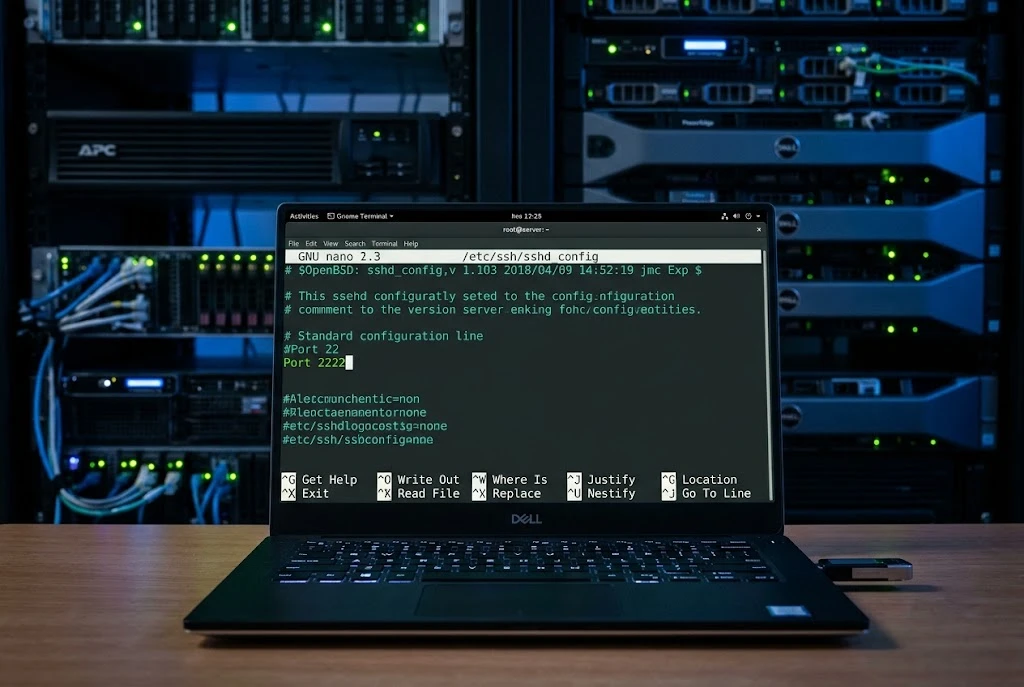
Changing the default SSH port on Linux takes about two minutes: edit one line in your SSH config file, open the new port in your firewall, restart the service, and reconnect using the new number. By default, SSH listens on port 22. Moving it to something else (say, 2222 or a high random number) cuts down the constant automated login attempts hitting your server, though it isn’t a replacement for real security like key authentication.
This guide walks through the exact steps, plus a few things that trip people up on newer systems including a quiet change in Ubuntu and Debian that stops the usual method from working.
What the SSH Port Actually Does
When you run ssh user@server, your client has to knock on a specific door to reach the SSH daemon (sshd). That door is a TCP port, and the agreed-upon default is 22. Both sides assume 22 unless you tell them otherwise.
Port 22 is public knowledge, which is exactly why it gets hammered. Point a server at the open internet and within minutes you’ll see login attempts in your logs from bots cycling through common usernames and passwords. Shifting SSH to a non-standard port doesn’t make these attempts impossible, but it does make your server invisible to the lazy, high-volume scanners that only ever check 22.
A quick reality check before you start: this is often called “security through obscurity.” It reduces noise and the sheer volume of attacks, but a determined attacker can find your new port with a port scan in seconds. Treat the port change as spring cleaning, not a lock. The real locks come later in this guide.
Before You Begin
Two things will save you from locking yourself out:
- Keep your current SSH session open. Open a second terminal and test the new port there before you close the one that’s already working. If something’s misconfigured, your live session is your way back in.
- Have console access if possible. On a VPS or cloud instance, that means the provider’s web console (Hetzner, DigitalOcean, AWS, etc.). It’s your safety net if SSH stops responding entirely.
You’ll also want to pick a port number. Anything from 1024 to 65535 works for a non-privileged service, and a higher, less obvious number is better than a predictable one. Note that 2222 is popular but also widely scanned, so it buys you less than people assume.
Step-by-Step: Changing the SSH Port
These steps use 2222 as an example. Swap in whatever number you chose.
1. Open the SSH daemon config
Edit the main SSH server configuration file (sshd_config) with a text editor and sudo:
bash
sudo nano /etc/ssh/sshd_config2. Set the new port
Find the line that reads #Port 22. Remove the # to uncomment it and change the number:
Port 2222If there’s no Port line at all, just add one. You can even list two lines temporarily (Port 22 and Port 2222) so SSH listens on both while you test then remove 22 once you’re confident the new port works.
Save and exit (in nano, Ctrl+O, Enter, then Ctrl+X).
3. Check for the systemd socket gotcha
This is the step most older tutorials miss. On Ubuntu 22.10 and later, and recent Debian releases, SSH is started through systemd socket activation (ssh.socket) rather than reading the port from sshd_config. On those systems, editing sshd_config alone does nothing, because the socket still forces port 22 (this behaviour is documented in the Ubuntu OpenSSH server guide).
To check whether this applies to you:
bash
sudo systemctl status ssh.socketIf it’s active, override the socket’s port instead:
bash
sudo systemctl edit ssh.socketIn the editor that opens, add:
[Socket]
ListenStream=
ListenStream=2222
The empty ListenStream= clears the default of 22; the second line sets your new port. Save and exit.
If
ssh.socketis not active on your system, skip this step entirely yoursshd_configedit is all you need.
4. Update SELinux (RHEL, CentOS, Fedora, Rocky, Alma)
Systems with SELinux in enforcing mode will block SSH on a non-standard port until you tell SELinux it’s allowed:
bash
sudo semanage port -a -t ssh_port_t -p tcp 2222If semanage isn’t installed, add it with sudo dnf install policycoreutils-python-utils. Debian and Ubuntu users without SELinux can ignore this.
5. Open the port in your firewall
Allow the new port before restarting SSH, or you’ll be shut out.
UFW (Ubuntu/Debian):
bash
sudo ufw allow 2222/tcpfirewalld (RHEL/Fedora):
bash
sudo firewall-cmd --permanent --add-port=2222/tcp
sudo firewall-cmd --reload
If your server sits behind a cloud provider’s own firewall or security group (AWS, Azure, GCP, Oracle), you’ll need to open the port there too – that’s a separate layer from the OS firewall.
6. Validate the config and restart
Test the configuration for syntax errors first:
bash
sudo sshd -tNo output means it’s clean. Then restart:
bash
# Debian / Ubuntu
sudo systemctl restart ssh

# If you edited the socket
sudo systemctl restart ssh.socket

# RHEL / Fedora / CentOS
sudo systemctl restart sshd
7. Connect using the new port
From a new terminal, use the -p flag:
bash
ssh -p 2222 user@your-server-ipIf it connects, you’re done. Only now should you close the original session and, if you added a temporary Port 22 line, remove it and restart once more.
A Quick Reference Table
| Task | Command |
|---|---|
| Edit SSH config | sudo nano /etc/ssh/sshd_config |
| Check socket activation | sudo systemctl status ssh.socket |
| Allow port (UFW) | sudo ufw allow 2222/tcp |
| Allow port (firewalld) | sudo firewall-cmd --permanent --add-port=2222/tcp |
| SELinux allow port | sudo semanage port -a -t ssh_port_t -p tcp 2222 |
| Test config | sudo sshd -t |
| Restart service | sudo systemctl restart ssh (or sshd) |
| Connect | ssh -p 2222 user@host |
Save Yourself the Repetition: SSH Config Shortcut
Typing -p 2222 every time gets old. Add an entry to your local ~/.ssh/config file (on your own machine, not the server):
Host myserver
    HostName your-server-ip
    Port 2222
    User yourname
Now ssh myserver connects on the right port automatically. Tools like scp and rsync pick up the same config.
Common Problems and Fixes
“Connection refused” on the new port. Usually the firewall is blocking it, SSH didn’t actually restart, or ssh.socket is overriding your config. Re-check steps 3, 5, and 6 in that order.
It still connects on 22 but not the new port. Classic sign of the systemd socket issue on Ubuntu/Debian. Your sshd_config change is being ignored — go back to step 3.
Works locally but not from outside. A cloud security group or upstream firewall hasn’t been updated. The OS firewall and the provider firewall are two separate gates.
Locked out completely. Use your provider’s web console to log in, revert the port in sshd_config, and restart. This is why keeping a session open matters.
Changing the Port Isn’t Enough on Its Own
A different port thins out the bots, but anyone scanning your server will still find SSH. If security is the goal, these matter far more than the port number:
- Use SSH keys instead of passwords, then set
PasswordAuthentication noinsshd_config. This single change defeats the brute-force attempts that make up most SSH noise. - Disable root login with
PermitRootLogin no. - Install Fail2ban to automatically ban IPs after repeated failed attempts.
- Keep the system patched, since SSH vulnerabilities are rare but serious.
Think of the port change as reducing the crowd at the door. Key authentication is the actual lock.
Conclusion
Changing the default SSH port on Linux is a small, reversible task: edit sshd_config, clear the firewall, watch out for systemd socket activation on recent Ubuntu and Debian, restart, and reconnect with -p. It won’t stop a serious attacker, but it does cut down the background noise and the automated attempts flooding your logs.
The real win comes when you pair it with key-based authentication and Fail2ban. Make the port change first because it’s easy, then spend ten more minutes on the parts that genuinely protect the server.
FAQ
Is it safe to change the SSH port? Yes, as long as you open the new port in the firewall before restarting SSH and keep a working session open to recover from mistakes. The risk is being locked out, not damaging anything.
What is the best SSH port to use? There’s no single best number. Any high port between 1024 and 65535 that isn’t already used by another service works. Avoid predictable choices like 2222 if you can; an uncommon number gets scanned less.
Does changing the SSH port improve security? Only slightly. It hides SSH from basic automated scanners and reduces log noise, but it’s security through obscurity. Real protection comes from SSH keys, disabling password login, and tools like Fail2ban.
Why does my new SSH port not work on Ubuntu? Recent Ubuntu versions start SSH through ssh.socket, which overrides the port in sshd_config. You have to edit the socket with systemctl edit ssh.socket instead. See step 3 above.
Do I need to change the port on both the server and my client? No. You only change it on the server. On the client you just specify the new port with ssh -p, or save it in your ~/.ssh/config file so it’s automatic.