Paying 80 suppliers by logging into the banking portal, uploading a file by hand and then ticking off each payment in the ledger is slow, and every manual step is a chance for someone to make a mistake or commit fraud. EFT Xpress (officially written “EFTXpress”) was built to take those steps away from people.
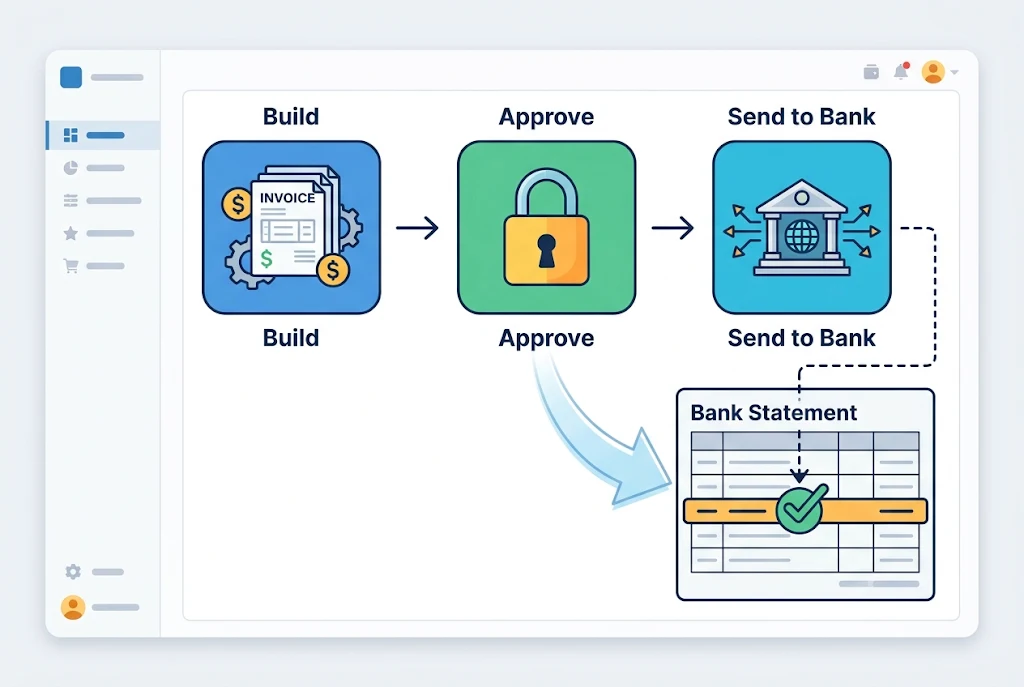
The short answer: EFT Xpress is an add-on from the South African software company Peresoft for its Cashbook module, which runs alongside Sage 300. It does three things. It turns a Cashbook batch into a bank-ready EFT file. It brings the bank’s reference numbers back in so payments can be reconciled. And in the 2026 release it puts approvals, OTP checks and SFTP delivery around the whole process, so nobody needs to log into online banking to send a payment run.
The sections below go through each feature, how it works in daily use, and where its limits are.
What EFT Xpress Is and Who It’s For
EFT stands for electronic funds transfer, which simply means a payment that moves between bank accounts electronically. Peresoft’s tool doesn’t move money itself. It prepares payment instructions inside Cashbook and passes them to your bank in the exact file layout that bank expects.
Peresoft first released EFT Xpress around the end of 2023, together with its reconciliation module RecXpress. Since then it has been updated every year: Version 2024 added what Peresoft calls “True Automation”, Version 2025 added payment authorisations and emailed remittance advice, and Version 2026 (announced in January 2026) focused heavily on security.
The typical user is a finance team that:
- already runs Sage 300 with Peresoft Cashbook
- pays many suppliers, customers or other payees from one or more bank accounts
- wants payment runs, approvals and bank reconciliation in one place instead of spread across spreadsheets and banking portals
A note for readers in Germany
The tool is built for the South African market. At launch, Peresoft supported file formats for Nedbank, Standard Bank and ABSA, with FNB expected soon after (as of March 2024). It doesn’t list formats for German banks.
German businesses usually pay suppliers through SEPA credit transfers in euros, using formats and standards set at European level. So the tool is mainly relevant if your company has a South African subsidiary, a shared-service centre handling South African payments, or Sage 300 users in that region. If all of your payments run through German banks, ask Peresoft directly whether your bank’s format is possible before you plan anything around it.
Batch Payments: How EFT Xpress Handles Payment Runs
Batch payments are the core of the product. Instead of keying in payments one by one at the bank, you build a batch in Cashbook and the software creates the file.
Setting up bank formats
Each bank expects its own file layout. During setup you pick your bank’s format from a drop-down list and decide what text appears on your statement and on the payee’s statement. According to the official Sage Marketplace listing, that description can combine up to three fields, such as the batch reference, the entry description and the payee code.
If your bank’s format isn’t on the list, Peresoft can build it. You’ll need to give them:
- a detailed record layout of the EFT format (your bank provides this)
- the name you want the format to appear under
- the serial number of your EFT Xpress licence, because Peresoft only writes new formats for existing customers
Once a new format is built, it’s added to updates for all users in that region. Version 2026 also lets you configure several EFT formats for the same bank, which helps if you use different products or account types at one bank.
Storing payee bank details
Payee banking information sits in Cashbook’s Miscellaneous Codes. You link each code to a vendor or customer by using the same number they have in Sage 300 Accounts Payable or Accounts Receivable. When that number is entered in a batch, Cashbook pulls the stored bank details in automatically.
This matters for accuracy. Staff aren’t retyping account numbers for every payment run, which removes one of the most common sources of misdirected payments.
Building and posting a batch
The everyday workflow is simple:
- Create a new batch and choose the EFT batch type.
- Add the payees and amounts. Entries you don’t want to pay this time can be deselected before export.
- Send the batch for approval (more on this below).
- Post it. Posting generates the EFT file in your bank’s format.
A practical detail: the file’s date stamp uses the date set in the bank setup if that date is in the future, and otherwise uses today’s date. If a payment run goes out on the wrong value date, that setting is worth checking first.
Regenerating a file without reposting
Sometimes a supplier changes their bank details after a batch is posted. From the batch list you can regenerate the EFT file for a posted batch, so updated payment details go into a new file without reposting the whole batch. In the 2026 release you can also switch the bank format directly from batch entry or batch control, even when it differs from the default.
Reconciliation: What Happens After the Bank Pays
Sending money is only half the job. Finance teams also need to prove each payment went through and match it to the bank statement.
Reference numbers and matching
Once the bank processes the payments, EFT Xpress imports the reference numbers the bank generates. It then matches them to the EFT transactions in Cashbook and updates the bank reconciliation, so each payment line has the bank’s own reference attached.
At month-end, this means you aren’t searching through a statement trying to match “Payment 1047” to a line that the bank labelled differently.
Rejected payments and error batches
Banks reject payments for ordinary reasons: a closed account, a wrong branch code, a mistyped account number. With SFTP delivery set up, the bank’s processing report is read automatically, and rejected entries become an error batch. You correct the problem and resubmit, and the vendor record updates when you fix it. Peresoft’s March 2024 launch material also describes checks against duplicate payments.
Where RecXpress fits
RecXpress is Peresoft’s separate reconciliation module. EFT Xpress handles outgoing payments, while RecXpress reconciles everything on the bank statement, including receipts, bank charges and debit orders. In 2024, Peresoft said RecXpress uses matching rules that improve over time, reaching around 99% matching after four to six months. That figure comes from the company, not an independent test, so treat it as a target rather than a promise.
The two modules are sold and configured separately, so check which one(s) your licence includes.
Security Controls in the 2026 Release
Payment fraud is the main reason this tool exists. In March 2026, ITWeb quoted South African Banking Risk Information Centre (SABRIC) figures showing digital banking fraud made up 65.3% of reported banking crime incidents in South Africa in 2024, with cases nearly doubling to around 64,000 and losses above R1.4 billion. Most of that is not hacking. It is often internal process gaps, like a quietly changed supplier account number or a batch that nobody really reviewed.
Cashbook Version 2026 targets those gaps directly.
Locked vendor bank details
Vendor bank details are locked to their authorised values. If someone changes an account number, the change has to be approved by a different person before it can be used in a batch. Version 2026 also asks for supporting proof, such as a letter from the payee or the payee’s bank confirming the account. Authorisers can approve a new payee account by email or SMS and confirm with a one-time password (OTP).
This blocks the classic invoice-redirection scam, where a fraudster poses as a supplier and emails “new banking details”.
Batch approvals and OTP
A finished payment batch is locked and can’t go to the bank until the chosen approvers sign it off. Approval rules can include:
- limits for specific users
- several approval levels for larger amounts
- optional OTP verification by email or SMS
The aim is segregation of duties: no single person can set up a payee, build a batch and release the money alone.
SFTP delivery and hash totals
Instead of a staff member downloading a file and uploading it to the banking portal, the approved batch goes automatically to a secure SFTP location, where the bank collects it. Users never handle the file, and it can be encrypted where the bank requires it.
Hash totals add another check. If a batch no longer balances to its original hash total, for example because a line was changed after approval, it can’t be processed.
Audit trail
Every step is logged: who entered or changed vendor details, who authorised a batch, when it happened and which notifications went out. Supporting documents like invoices can be attached inside Cashbook. For auditors, this replaces a pile of email chains with one record.
EFT Xpress Features at a Glance
| Feature | What it does | Why it helps |
|---|---|---|
| Bank format setup | Generates files in each bank’s required layout | No manual file building |
| Stored payee details | Pulls bank details from linked codes | Fewer typing errors |
| EFT batch type | Builds payment runs inside Cashbook | One place for all payments |
| File regeneration | Rebuilds a posted batch file | Fix details without reposting |
| Reference import | Brings bank references back in | Faster reconciliation |
| Error batches | Turns rejections into correctable batches | Quick resubmission |
| Vendor account authorisation | Locks and approves bank detail changes | Blocks redirection fraud |
| Batch approvals with OTP | Multi-level sign-off before release | Segregation of duties |
| SFTP delivery | Sends files straight to the bank | No portal logins or manual uploads |
| Hash totals | Rejects batches altered after approval | Tamper check |
| Audit trail | Logs every change and approval | Easier audits |
Common Mistakes When Rolling Out EFT Xpress
Most problems come from setup, not the software itself.
- Skipping the bank’s file specification. Before go-live, get your bank to confirm the exact format, cut-off times and whether SFTP is available for your account. Not every bank product supports it.
- Giving one person every role. The approval features only work if setup, batch creation and release are split between different people. In a small team, at least separate the person who changes bank details from the person who approves payments.
- Leaving old payee data unverified. Locked details are only as good as the data you started with. Check existing vendor accounts against confirmation letters before switching on authorisation.
- Not testing a small batch first. Run a low-value test payment to a few known accounts, then confirm the references come back and match correctly.
- Assuming every feature is in your version. OTP approvals, multiple formats per bank and the authorisation documents arrived in Version 2026. Older installations may not have them.
Is EFT Xpress the Right Fit? A Quick Checklist
The add-on is likely worth considering if you can say yes to most of these:
- You already use Sage 300 with Peresoft Cashbook.
- Your banks are supported, or Peresoft can build your format.
- You run regular supplier or payee batches, not just a handful of payments a month.
- Auditors or management want clear approval trails.
- You want to stop staff logging into banking portals to release payments.
If you don’t use Cashbook or your payments run on European SEPA rails, a different payment tool, or your bank’s own bulk-payment service, may be a better match. Pricing isn’t published, so you’ll need a quote from Peresoft or a Sage business partner.
Final Thoughts
EFT Xpress is a focused tool. It doesn’t replace your bank or your ERP. It connects Cashbook to your bank so that payment runs, bank references and approvals all sit in one controlled flow. The batch and reconciliation features save time, but the 2026 security controls are probably the strongest reason to look at it now: locked bank details, OTP-backed approvals and SFTP delivery tackle the fraud routes that cost businesses the most.
Before you commit, confirm your bank’s format, your Cashbook version and which modules your licence covers.
FAQ
Is EFT Xpress the same as EFT Direct?
Yes. Peresoft has referred to the product as both EFTXpress and EFT Direct in its announcements.
Does EFT Xpress work without Sage 300?
It’s built as an add-on for Peresoft Cashbook, which integrates with Sage 300. It isn’t marketed as a standalone payment app.
Which banks does EFT Xpress support?
At launch, Nedbank, Standard Bank and ABSA were supported, with FNB added afterwards. Peresoft can build other bank formats for licensed customers, so check the current list with them.
Can EFT Xpress be used for SEPA payments in Germany?
Peresoft doesn’t publish support for German or SEPA formats. Ask Peresoft directly before planning to use it for euro payments.
How much does EFT Xpress cost?
Peresoft doesn’t publish prices. Contact Peresoft or a Sage partner for a quote based on your setup.