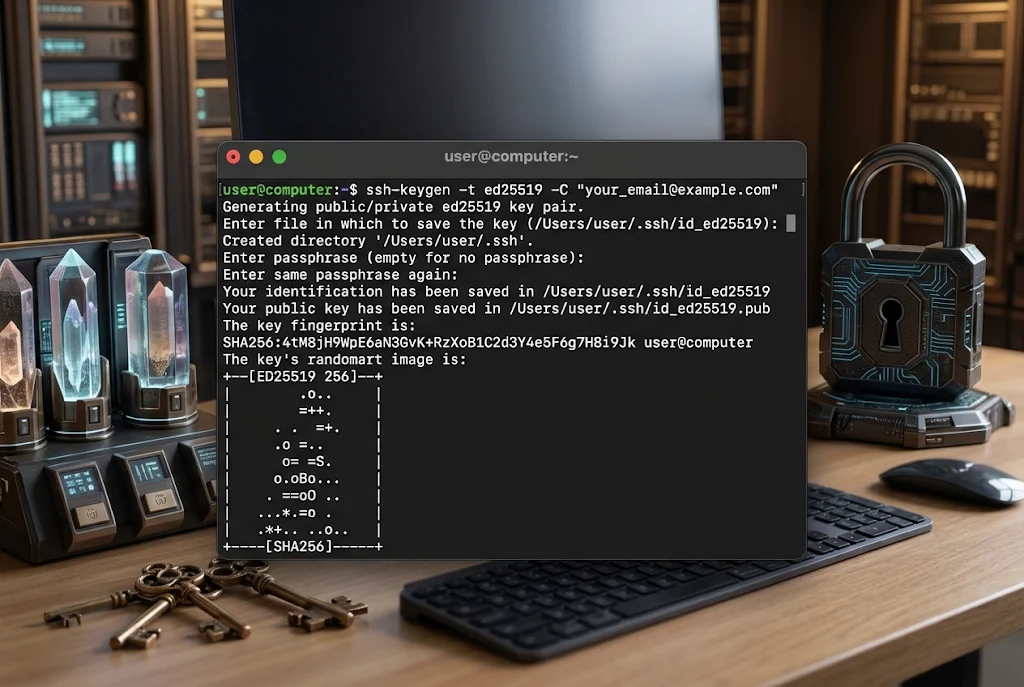
To create an SSH key pair, open a terminal (Terminal on macOS and Linux, PowerShell on Windows 10 or 11) and run ssh-keygen -t ed25519 -C "your-label". Press Enter to accept the default file location, then type a passphrase when asked. You’ll get two files: a private key (id_ed25519) that never leaves your computer, and a public key (id_ed25519.pub) that you copy to servers, GitHub or your hosting panel.
That’s the short version. The rest of this guide explains what each prompt means, which settings are worth changing, how to install the public key, and how to fix the problems that tend to show up the first time you use SSH keygen.
What SSH Keygen Actually Does
ssh-keygen is the key tool that ships with OpenSSH. It’s already installed on macOS, almost every Linux distribution and current versions of Windows. It creates key pairs, changes passphrases, shows fingerprints and manages the known_hosts file.
A key pair works like a padlock and its only key:
- Public key (
.pub): the padlock. You can hand out copies freely. A server that has it can check that you are who you say you are. - Private key (no extension): the only key that opens it. If someone copies this file, they can log in as you.
When you connect, the server sends a challenge that only your private key can answer correctly. Your password never travels across the network, which is the main reason keys are safer than password logins.
Before You Start: Check for Existing Keys
Many people generate a new key and accidentally overwrite one they still need. Check first:
ls -la ~/.sshOn Windows PowerShell:
dir $env:USERPROFILE\.sshIf you see id_ed25519 or id_rsa, you already have a key. You can reuse it, or create a new one with a different file name (covered below), so the old one stays intact.
Tip for German keyboards: the tilde (~) is typed with AltGr + “+” on a QWERTZ layout. If the character doesn’t appear straight away, press the space bar afterwards.
Step-by-Step: Create Your Key Pair With SSH Keygen
Step 1: Open a terminal
- macOS: Terminal (Programs > Utilities) or iTerm2.
- Linux: any terminal emulator.
- Windows 10/11: PowerShell or Windows Terminal. The OpenSSH client is built in, so you don’t need PuTTY for this.
Step 2: Run the command
ssh-keygen -t ed25519 -C "anna-laptop-2026"Here’s what each part does:
| Part | Meaning |
|---|---|
-t ed25519 | Key type. Ed25519 is the modern choice. |
-C "anna-laptop-2026" | A comment stored in the public key. Use something that tells you later which device the key belongs to. |
The comment doesn’t have to be your email address. A label such as “work-thinkpad” or “home-mac” is often more useful, because six months from now you’ll want to know which key is on which machine.
According to the official ssh-keygen manual, current OpenSSH versions already create an Ed25519 key when you don’t give a type at all. Writing -t ed25519 anyway is a good habit, because older systems may still default to RSA.
Step 3: Choose where to save the key
You’ll see something like:
Enter file in which to save the key (/home/anna/.ssh/id_ed25519):Press Enter to accept the default. Use a custom name only if you need more than one key, for example one for work and one for personal projects:
ssh-keygen -t ed25519 -C "work-gitlab" -f ~/.ssh/id_ed25519_workIf a file with that name already exists, ssh-keygen asks whether to overwrite it. Answer n unless you’re sure that key isn’t used anywhere.
Step 4: Set a passphrase
Enter passphrase (empty for no passphrase):A passphrase encrypts the private key on your disk. If your laptop is stolen or a backup leaks, the key file alone is useless without it.
A few practical notes:
- Nothing appears on screen while you type. That’s normal.
- Use a phrase of several words rather than a short, complex password.
- Think twice about umlauts (ä, ö, ü) or ß in the passphrase. If you ever have to type it on a keyboard with a different layout, for example on a rescue system or a remote console, those characters can be awkward or impossible to enter.
A key with no passphrase does make sense for automation, such as a backup script or a CI job. In that case, give the key its own name and limit what it can do on the server.
Step 5: Check the result
You’ll see the fingerprint and a small “randomart” image. Confirm both files exist:
ls ~/.ssh/id_ed25519*You should see id_ed25519 and id_ed25519.pub. Only the .pub file is ever shared.
Ed25519 or RSA: Which Key Type Should You Pick?
For almost everyone in 2026, the answer is Ed25519. Here’s the comparison:
| Ed25519 | RSA (3072 or 4096 bit) | |
|---|---|---|
| Public key length | Short, one tidy line | Very long |
| Speed | Fast | Slower to generate and sign |
| Compatibility | All current systems and Git hosts | Also works on very old devices |
| When to use | Default for new keys | Only for legacy servers, old routers or NAS boxes that reject Ed25519 |
If you really need RSA, don’t go below 3072 bits:
ssh-keygen -t rsa -b 4096 -C "old-nas"Avoid DSA entirely. The OpenSSH release notes show that DSA was disabled at compile time in version 9.8 (July 2024) and removed completely in version 10.0 (April 2025). GitHub stopped accepting new DSA keys in March 2022.
A note on post-quantum keys
OpenSSH 10.4 (July 2026) added experimental support for a hybrid key type that pairs Ed25519 with the post-quantum algorithm ML-DSA-44, and 10.5 (August 2026) enabled it. You create one with -t mldsa44-ed25519. It’s still very new, though: many servers, Git hosts and older clients won’t recognise it yet. For everyday use, Ed25519 is still the practical choice. Check whether your provider supports the hybrid type before you switch.
How to Install the Public Key on a Server
Creating the key is only half the job. The server has to know your public key.
Linux and macOS: ssh-copy-id
ssh-copy-id -i ~/.ssh/id_ed25519.pub user@server.example.deIt asks for your server password one last time and adds the key to ~/.ssh/authorized_keys on the server.
Windows: a one-line alternative
Windows doesn’t come with ssh-copy-id, so in PowerShell you can use:
type $env:USERPROFILE\.ssh\id_ed25519.pub | ssh user@server.example.de "mkdir -p ~/.ssh && cat >> ~/.ssh/authorized_keys"Hosting panels and Git services
Many German hosting providers, cloud consoles and Git platforms (GitHub, GitLab, Bitbucket) have a field labelled “SSH keys” in the account settings. Print the public key and paste the whole line:
cat ~/.ssh/id_ed25519.pubThe line starts with ssh-ed25519 and ends with your comment. Copy it exactly as it is, on a single line.
Test the login
ssh user@server.example.deFor GitHub, test with ssh -T git@github.com. If you set a passphrase, you’ll be asked for it instead of the server password.
Stop Typing the Passphrase Every Time: ssh-agent
Typing a passphrase for every git push gets tiring quickly. ssh-agent keeps the unlocked key in memory for your session.
Linux:
eval "$(ssh-agent -s)"
ssh-add ~/.ssh/id_ed25519
macOS (stores the passphrase in the Keychain):
ssh-add --apple-use-keychain ~/.ssh/id_ed25519Windows (PowerShell as administrator, once):
Get-Service ssh-agent | Set-Service -StartupType Automatic
Start-Service ssh-agent
ssh-add $env:USERPROFILE\.ssh\id_ed25519
Useful SSH Keygen Commands After Setup
You’ll come back to the same tool later. These are the commands people actually use:
| Task | Command |
|---|---|
| Change or add a passphrase | ssh-keygen -p -f ~/.ssh/id_ed25519 |
| Show a key’s fingerprint | ssh-keygen -lf ~/.ssh/id_ed25519.pub |
Recreate a lost .pub file | ssh-keygen -y -f ~/.ssh/id_ed25519 > ~/.ssh/id_ed25519.pub |
| Remove an old host entry after a server was reinstalled | ssh-keygen -R server.example.de |
The -R command is worth remembering. If you rebuild a server or a cloud instance gets a new host key, SSH shows a loud “REMOTE HOST IDENTIFICATION HAS CHANGED” warning. If you know the change is legitimate, remove the old entry and connect again. If you didn’t change anything, don’t skip the warning. Ask whoever runs the server first.
Common Mistakes and How to Fix Them
“Permission denied (publickey)” This is the most common error. Check these in order:
- The public key is really in
~/.ssh/authorized_keyson the server, under the user you’re logging in as. - You’re offering the right key. Test with
ssh -i ~/.ssh/id_ed25519 user@server. - File permissions on the server are too open. SSH refuses keys in folders that other users can write to:
chmod 700 ~/.ssh
chmod 600 ~/.ssh/authorized_keys
“UNPROTECTED PRIVATE KEY FILE” on your own computer Your private key is readable by others. Fix it with chmod 600 ~/.ssh/id_ed25519. On Windows, this usually happens after copying keys from another machine. Make sure only your user account has access in the file’s security settings.
Pasting the private key by mistake It happens more often than you’d think. If you ever paste the contents of the file without .pub into a website, chat or ticket, treat that key as compromised. Generate a new one and remove the old public key from every server.
Copying the key with line breaks Some editors wrap long lines. The public key must stay on a single line, or the server will ignore it.
Good Habits That Save Trouble Later
- One key per device. If a laptop goes missing, you remove one key instead of replacing it everywhere.
- Clear comments.
anna-laptop-2026tells you far more thanid_ed25519when you’re cleaning upauthorized_keys. - Review your keys once a year. Delete public keys of old devices from servers and Git accounts.
- Back up private keys carefully. An encrypted password manager or encrypted drive is fine. A plain cloud folder isn’t.
- For company or public-sector systems in Germany, check whether your organisation follows the BSI guideline TR-02102-4 on SSH. It sets out which algorithms and key lengths are acceptable, and it’s updated regularly.
Final Thoughts
Creating a key with SSH keygen takes under a minute: run ssh-keygen -t ed25519, keep the default location, choose a good passphrase and copy only the .pub file to your servers. What makes the difference later are the small habits: one key per device, clear labels and a quick yearly clean-up. If you’re setting this up for the first time today, test the login on one server, add the key to ssh-agent, and then roll it out everywhere else.
FAQ
Is SSH keygen free and already installed?
Yes. ssh-keygen is part of OpenSSH, which is open source and comes with macOS, most Linux distributions and current versions of Windows 10 and 11.
Can I use the same SSH key on several servers?
Yes. You can put the same public key on as many servers as you like. Many people still prefer one key per device, so a lost laptop can be locked out without affecting their other machines.
What happens if I forget my passphrase?
It can’t be recovered. Generate a new key pair, install the new public key and remove the old one from your servers and accounts.
Should I share my public key?
Yes, that’s what it’s for. Never share the private key, which is the file without the .pub extension.