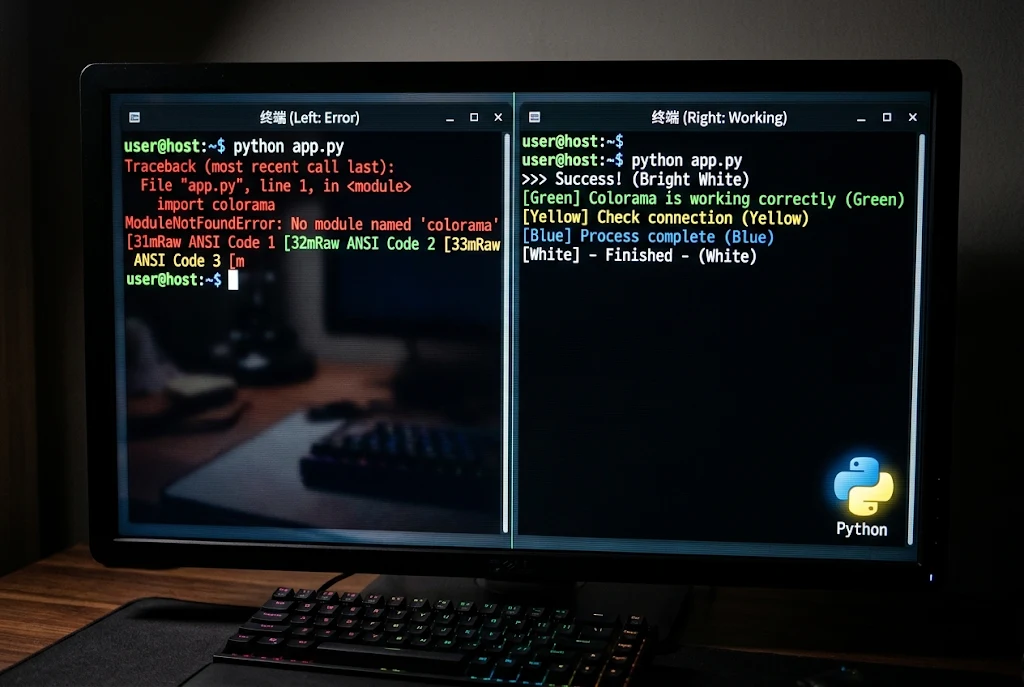
When pip colorama “isn’t working,” the cause is almost always one of three things. Pip might have installed the package into a different Python than the one running your script. Windows might not be translating the color codes. Or the code itself might be missing a reset or an init call.
The quick fix that solves most cases: run python -m pip install colorama with the same Python you use to run your script. Then call just_fix_windows_console() (or init()) at the top of your program.
If that doesn’t do it, the seven errors below cover what people actually run into. Each one shows the message you’ll see, why it happens, and the exact fix. Find the one that matches your screen and skip the rest.
Pip Colorama Quick Diagnosis Table
Match what’s on your screen to the first column, then jump to the matching section below. Most pip colorama issues fall into one of these seven rows.
| What you see | Likely cause | Fastest fix |
|---|---|---|
'pip' is not recognized or pip: command not found | pip isn’t on your PATH | Use python -m pip install colorama |
ModuleNotFoundError: No module named 'colorama' | Installed into a different Python | Install with the interpreter that runs your code |
Text like ←[31m instead of colors | Windows console not handling ANSI codes | Call just_fix_windows_console() |
| Every line stays red after one print | Style never reset | Add Style.RESET_ALL or autoreset=True |
Permission denied or externally-managed-environment | Installing into system Python | Use a virtual environment |
| Works in terminal, fails in VS Code or Jupyter | Editor uses another interpreter | Select the right interpreter or use %pip |
| No colors in IDLE or in a log file | Output isn’t a real terminal | Run in a terminal; strip colors for files |
1. “pip Is Not Recognized” or “pip: Command Not Found”
This one stops a pip colorama install before it even starts. Your system simply can’t find the pip command.
On Windows you’ll usually see 'pip' is not recognized as an internal or external command. If your Windows is set to Spanish, which is common on machines bought in Mexico, the same error reads "pip" no se reconoce como un comando interno o externo. It’s the same problem in a different language.
Fix: Skip the bare pip command and call it through Python:
bash
python -m pip install coloramaOn Windows, if python itself isn’t recognized, try the launcher instead:
bash
py -m pip install coloramaOn macOS and most Linux systems, use python3 -m pip install colorama. If none of these commands work, Python probably wasn’t added to PATH during installation. The simplest cure is to rerun the Python installer and tick the “Add python.exe to PATH” box.
2. ModuleNotFoundError: No Module Named ‘colorama’
This is the most common complaint, and it’s confusing because your pip colorama install just reported success a minute ago.
The reason: many computers have more than one Python. You might have Python 3.11 from python.org, 3.12 from the Microsoft Store, and an Anaconda install as well. Plain pip may belong to one of them while your script runs on another.
Fix: Check which Python runs your script, then install into that exact one:
bash
python --version
python -m pip install colorama
python -m pip show colorama
The last command shows where Colorama landed. If the Location: path doesn’t match the Python you’re running, you’ve found the mismatch.
A useful habit: always use python -m pip instead of plain pip. It ties the install to the interpreter you’re actually using, and it prevents this error almost completely.
3. Colors Show as Strange Codes on Windows
You run your script and instead of red text you get something like ←[31mError←[0m. The pip colorama install worked fine. The library just wasn’t told to do its job.
On older Windows consoles, ANSI color codes aren’t understood natively. Colorama’s main purpose is to make them work there, but only after you activate it.
Fix: Add this near the top of your script:
python
from colorama import just_fix_windows_console, Fore

just_fix_windows_console()
print(Fore.RED + "This should be red")
just_fix_windows_console() was added in version 0.4.6 and is the safer choice for new code. Older tutorials use init(), which still works but wraps your output in ways that can cause side effects. If you’re stuck on an older Colorama version, init() is fine.
On macOS and Linux, terminals understand ANSI codes on their own, so this error is mostly a Windows thing.
4. Colors “Leak” Into Every Line After
You print one error message in red, and suddenly everything after it is red too, including your terminal prompt once the script ends.
This isn’t a bug, and reinstalling won’t help. Colorama codes stay active until something resets them, which surprises a lot of people after their first pip colorama install.
Fix option A: Reset manually after each colored string:
python
from colorama import Fore, Style

print(Fore.RED + "Failed to connect" + Style.RESET_ALL)
print("This line is normal again")
Fix option B: Let Colorama reset for you after every print:
python
from colorama import init, Fore

init(autoreset=True)
print(Fore.GREEN + "Saved")
print("Back to normal automatically")
Option B is easier for small scripts. Option A gives you more control when you want several colors on one line.
5. Permission Denied or “externally-managed-environment”
Two related errors can block a pip colorama install outright, usually on a shared computer or a newer Linux or macOS setup.
PermissionError: [Errno 13] Permission deniedusually means pip is trying to write to a system folder you don’t have rights to.error: externally-managed-environmentshows up on newer Linux versions and on Homebrew Python for macOS. These systems now block pip from changing the Python that the operating system depends on.
Fix: Use a virtual environment. It’s a private folder of packages for your project, and it needs no special permissions:
bash
python -m venv venv
# Windows
venv\Scripts\activate
# macOS / Linux
source venv/bin/activate

pip install colorama
Avoid sudo pip install on Linux and macOS. It can overwrite packages your system relies on and cause bigger problems later.
For a quick one-off without a virtual environment, python -m pip install --user colorama installs only for your user account. On systems that show the externally-managed error, a virtual environment is the cleaner route.
6. Works in the Terminal but Not in VS Code, PyCharm or Jupyter
The script runs fine from the command line. Then you press “Run” in your editor and get ModuleNotFoundError again. This is really Error #2 in disguise. Your editor picked a different Python, so the pip colorama install you ran in the terminal never reached it.
VS Code: Press Ctrl+Shift+P, choose “Python: Select Interpreter,” and pick the one where you installed Colorama. If you made a virtual environment, choose the interpreter inside the venv folder.
PyCharm: Go to Settings, then Project, then Python Interpreter. Confirm that Colorama appears in the package list, or add it from there.
Jupyter Notebook: Run this in a cell:
python
%pip install colorama%pip installs into the kernel the notebook is actually using. That’s more reliable than !pip, which can target a different Python. Restart the kernel afterward.
7. No Colors in IDLE, Log Files or Piped Output
Not every pip colorama issue is an install issue. Sometimes Colorama is working correctly, and the place you’re viewing the output just can’t show colors.
- IDLE, Python’s built-in editor, doesn’t support ANSI color codes in its shell window. Run the script from Command Prompt, PowerShell or Terminal instead.
- Redirected output. When you save output to a file (
python app.py > log.txt), Colorama may strip or skip the color codes, depending on your platform and settings. That’s usually what you want, since a log file full of escape codes is hard to read. - CI tools and some online code runners may display raw codes or nothing at all.
Fix: Test in a real terminal first. If you want to control the behavior with files, init(strip=True) removes the codes and init(strip=False) keeps them. Check the Colorama documentation on PyPI for exactly how these options act on your platform.
A Quick Health Check You Can Run
If you’re not sure which pip colorama problem you have, save this as check.py and run it:
python
import sys
print("Python:", sys.executable)

try:
    import colorama
    from colorama import just_fix_windows_console, Fore, Style
    just_fix_windows_console()
    print("Colorama version:", colorama.__version__)
    print(Fore.GREEN + "Colors work!" + Style.RESET_ALL)
except ImportError:
    print("Colorama is not installed for this Python.")
The first line tells you exactly which Python ran the script. If the import fails, install with "that path" -m pip install colorama. If you get the version number but no green text, look at Errors 3 and 7.
At the time of writing, the latest release on PyPI is 0.4.6. If just_fix_windows_console can’t be imported, upgrade with python -m pip install --upgrade colorama.
Bonus: SSL Errors on Office or University Networks
If your pip colorama install fails with SSL: CERTIFICATE_VERIFY_FAILED, the problem is the network, not the package. Company and university networks often inspect secure traffic, and pip doesn’t trust the certificate they use.
The cleanest fix is to ask your IT team for their root certificate and point pip to it:
bash
python -m pip config set global.cert "C:\path\to\company-cert.pem"A common workaround you’ll find online is adding --trusted-host pypi.org --trusted-host files.pythonhosted.org to the install command. It works, but it switches off certificate checks for those hosts, so treat it as a temporary step, not a permanent setting.
How to Prevent Pip Colorama Problems in New Projects
Fixing errors is fine, but a few minutes of setup means you won’t see most of them again.
- Create a virtual environment first. Do it before installing anything, for every new project.
- Pin the version. Add
colorama==0.4.6to arequirements.txtfile so every machine gets the same release. - Install from the file. Teammates, or you on a new laptop, run
python -m pip install -r requirements.txtand get an identical setup. - Call the Windows fix once. Put
just_fix_windows_console()in your main entry file only, not in every module. Callinginit()repeatedly can wrap your output more than once and cause strange behavior.
This routine takes about two minutes and keeps a pip colorama setup predictable across Windows, macOS and Linux. It also helps anyone in Mexico or elsewhere who shares code with classmates or clients using a different operating system.
When Colorama Isn’t the Right Tool
Colorama is deliberately simple. It handles basic foreground and background colors plus a few styles, and that’s about it. If you find yourself fighting it to build tables, progress bars or richly formatted output, a bigger library like Rich may save you time.
Colorama’s own README on GitHub suggests pairing it with libraries such as Termcolor when you want friendlier color syntax. In that setup, Colorama just keeps Windows behaving.
Final Takeaway
Most pip colorama problems come down to installing into the wrong Python or forgetting one line of setup. Make python -m pip install colorama your default command and use a virtual environment for each project. Add just_fix_windows_console() at the top of your scripts, and keep in mind that not every window can display colors. Those four habits prevent nearly every error on this list.
Frequently Asked Questions
Why does pip say Colorama is installed but Python can’t find it?
Pip and Python are pointing to different installations, which is the most common pip colorama mix-up. Run python -m pip install colorama with the same python command you use to run your script. That way both use the same interpreter.
Do I still need Colorama on Windows 10 and 11?
Modern Windows Terminal handles ANSI colors on its own, but older consoles and some setups don’t. Calling just_fix_windows_console() is a cheap safety step. It does nothing where it isn’t needed.
Should I use init() or just_fix_windows_console()?
For new code on Colorama 0.4.6 or later, use just_fix_windows_console(). Use init() when you need its extra options, such as autoreset or strip, or when you’re on an older version.
Is it safe to install Colorama with pip?
Yes, as long as you install the official package exactly as colorama from PyPI. Double-check the spelling. Lookalike package names exist on PyPI, and you don’t want to install one of those by mistake.
How do I reinstall Colorama cleanly?
Run python -m pip uninstall colorama, confirm with y, then run python -m pip install colorama again. For a quick reset of a broken pip colorama setup, python -m pip install --force-reinstall colorama does both steps in one command.