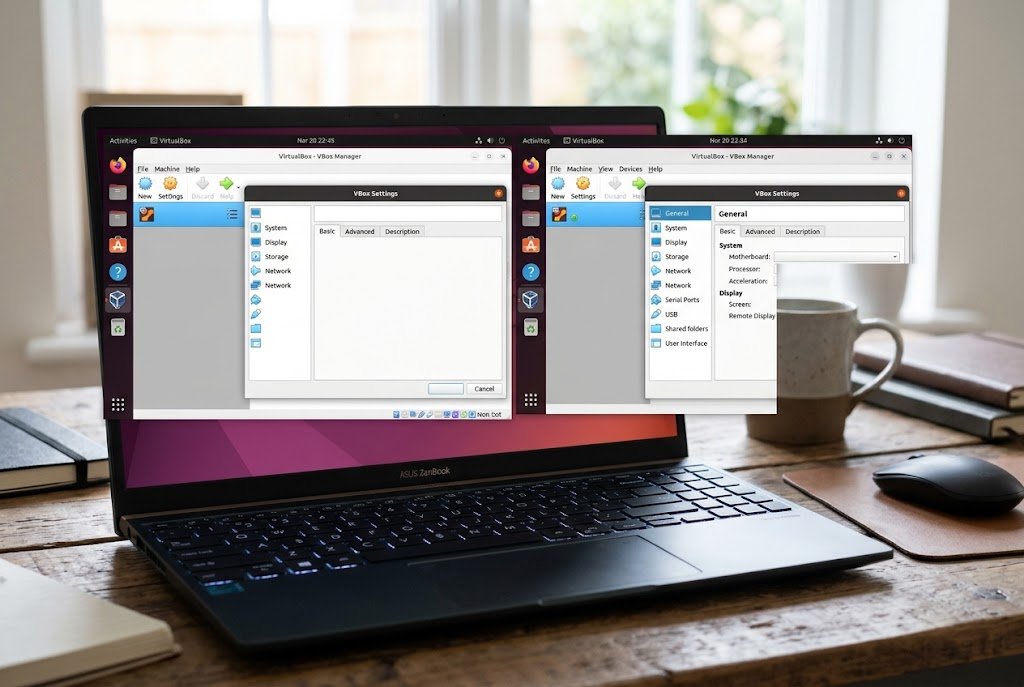
VBox software invisible text is usually a display problem, not a sign that your virtual machine is ruined. “VBox” is the common short name for Oracle VirtualBox, and the problem normally means menus, labels, or window titles appear blank or partly drawn. The usual causes are 3D acceleration, outdated Guest Additions, the wrong graphics controller, or missing fonts in a Linux guest.
Start with the quickest test: shut down the VM, turn off 3D acceleration, and boot it again. If the text comes back, you’ve found the problem area. If it doesn’t, update Guest Additions and work through the checks below.
“Invisible text” isn’t an official VirtualBox error, so you won’t find it in the settings or logs. It’s simply how people describe the symptom, which is why the first job is working out what kind of missing text you have.
What the Problem Looks Like
The symptom varies a lot from one setup to another. You might see:
- Icons in a menu with no labels beside them
- Buttons you can click even though their names are blank
- Only a few stray letters on each line
- Solid colored boxes where windows should be
- Text that appears when you hover over or select it
In most of these cases, the guest system is still running normally. The clicks register and the programs open. What has failed is the step that draws the text on your screen.
Run These Three Checks First
These checks take about two minutes and can save you from changing the wrong setting.
1. Find out where the text is missing. The guest is the system running inside the VM. The host is your real computer. If the blank text is inside the VM window, focus on the guest and its settings. If the VirtualBox Manager window itself looks wrong, the problem is on the host side.
2. Drag your mouse across the blank area. Text that appears when highlighted is being drawn, but it may be the same color as its background. That points to a theme or contrast setting. Try switching the guest between light and dark mode before you touch any VM settings.
3. See how far the problem spreads. If one program is affected, check that program’s own display or hardware acceleration options. If every menu in the guest is affected, look at the VM’s graphics setup.
| What you see | Likely cause | Try this first |
|---|---|---|
| Blank menus across the whole guest | 3D acceleration or graphics driver issue | Turn off 3D acceleration |
| Text vanished after a VirtualBox update | Guest Additions version mismatch | Update Guest Additions |
| Linux guest shows empty boxes or no labels | Missing fonts | Install a basic font package |
| Text is garbled rather than blank | 3D rendering issue | Turn off 3D, then try another controller |
| Text appears only when selected | Theme or contrast problem | Change the guest theme |
| VirtualBox Manager itself looks blank | Host theme or app issue | Update VirtualBox on the host |
Common Causes of VBox Software Invisible Text
There’s rarely one universal cause, and the same setting can help one VM and break another. That’s why changing one thing at a time matters.
3D acceleration is a commonly reported trigger. Linux guests have shown menus with icons but almost no text once 3D was switched on, and Windows guests have shown unreadable fonts with the same setting. On the other hand, some software needs 3D to display properly, so turning it off isn’t always the permanent answer.
Outdated Guest Additions are another strong suspect. These are the drivers and tools installed inside the guest, and they include its custom video driver. VirtualBox says existing Additions should keep working after an upgrade, but it recommends keeping versions matched for best results.
The wrong graphics controller can cause trouble too, especially on a VM that was imported or created years ago with older settings.
Missing fonts are mainly a Linux issue. Minimal installs can reach a desktop without the fonts that its apps expect, which leaves labels empty.
Host graphics drivers also play a part. With 3D enabled, the guest’s graphics work is passed to your real graphics hardware, so a bad driver on the host can show up inside the VM.
How to Fix Invisible Text in VirtualBox
Work through these in order and retest after each one. Before you start, take a snapshot of the VM if you can, so it’s easy to return to the current state.
Turn Off 3D Acceleration
- Fully shut down the VM. Display settings can’t be changed properly from a saved state, so use Power Off or a normal shutdown.
- Select the VM in VirtualBox Manager and open Settings > Display > Screen.
- Clear Enable 3D Acceleration. The exact label can differ a little between versions.
- Click OK and start the VM.
If the text returns and you don’t need 3D, you can leave it off. Everyday browsing, office work, and terminal use generally run fine without it. If you do need 3D, turn it back on after finishing the next two steps.
Update Guest Additions
- Start the VM and open the Devices menu in the VM window.
- Choose Insert Guest Additions CD Image.
- Run the installer inside the guest. On Windows, that’s usually
VBoxWindowsAdditions.exe. - Reboot the guest.
On a Linux guest, open a terminal in the mounted disc’s folder and run:
sudo sh ./VBoxLinuxAdditions.runYour distribution may already include its own version of these tools. VirtualBox’s manual notes that those copies are often out of date, so take a snapshot before replacing them.
Pick the Right Graphics Controller
Open Settings > Display > Screen with the VM powered off and check the Graphics Controller setting.
| Guest system | Controller to use | Notes |
|---|---|---|
| Windows 7 or later | VBoxSVGA | Default for these guests |
| Linux | VMSVGA | Default for Linux guests |
| Older Windows, Oracle Solaris | VBoxVGA | Legacy option, no 3D acceleration |
If your VM is using a different option, change it and test again. If it already matches the table, you can still try the other SVGA option as a short experiment, but write down the original setting first.
Raise Video Memory
Oracle’s rough formula for the minimum is color depth divided by 8, multiplied by width, height, and the number of screens. A single 1920 x 1080 display at 32-bit color needs only about 8 MB, and a 4K display about 33 MB. So low video memory isn’t often the cause on a plain desktop, but extra memory may be needed with display acceleration.
It’s still an easy fix to rule out. In Settings > Display > Screen, move the Video Memory slider up to 128 MB if your version allows it, then test.
Update the Host
Update VirtualBox and your host’s graphics driver, then install the matching Guest Additions again. Old VirtualBox bug reports show that fixes for this kind of problem sometimes arrive in a later release. At the time of writing, the newest version in the official VirtualBox changelog is 7.2.22, released on October 20, 2026. That entry is described as a maintenance release with security fixes, and no recent entry names invisible text specifically, so an update may help but isn’t a guaranteed cure.
Fixes for Your Specific System
Windows Guests
Open Device Manager inside the guest and expand Display adapters. You should see a VirtualBox graphics adapter. If you see Microsoft Basic Display Adapter, the Additions video driver isn’t active, so run the installer again and reboot.
If you’re using Windows 10 or 11 and need 3D for a particular program, test that program after every change. Support can vary from one app to another, and a setting that fixes the desktop may not fix a design tool or game.
Linux Guests
Start by checking whether the system has any fonts at all:
fc-list | wc -lA very low number, or zero, points to a font problem. On Ubuntu or Debian, you can install a basic set and refresh the font cache like this:
sudo apt install fontconfig fonts-dejavu
fc-cache -f
Package names differ on other distributions, so search your package manager for “DejaVu” if needed. Then log out and back in.
If the text disappeared after a kernel update, rebuild the Additions modules with this command, then reboot:
sudo rcvboxadd setupNewer Linux guests need one extra check. The changelog says the Additions version of the vboxvideo module is deprecated for kernel 7.0 and newer, and it suggests VMSVGA or the module supplied by your kernel or distribution. Run uname -r to see your kernel version.
If your login screen offers both Wayland and Xorg sessions, try the other one too. It’s a quick way to learn whether the problem follows a single display system.
Mac Hosts
Mac users should check their hardware first. Starting with VirtualBox 7.2, 3D acceleration is no longer supported on macOS hosts with Intel processors, and support on Apple silicon is listed as experimental. If 3D is enabled on a VM you’ve moved from another computer, turn it off and test again.
When VirtualBox Manager Itself Is Blank
Changing VM settings won’t help here because the problem sits on your host. Theme problems are a good place to look. VirtualBox 7.2.6 fixed an issue with switching between light and dark modes on macOS hosts, and 7.2.2 added a way for Windows 11 hosts to use the older Windows 10 themes. Update VirtualBox first, then try changing your system’s light or dark mode.
What to Do If the Text Is Still Missing
Compare your problem VM with a brand-new one running the same guest system. If the new VM displays text correctly, the problem is probably in the old VM’s settings or guest drivers. If both fail, look at the host, its graphics driver, or the VirtualBox version.
To ask for help, open the log for the VM from VirtualBox Manager. The file is called VBox.log, and by default it’s in the VirtualBox VMs/VM-name/Logs folder in your home directory. Include your VirtualBox version, host and guest systems, graphics controller, 3D setting, and a screenshot. Those details get you a useful answer much faster than “my text is gone.”
How to Prevent It in New VMs
- Install Guest Additions right after setting up the guest system.
- Leave the graphics controller on the default unless you have a clear reason to change it.
- Enable 3D only when a program needs it.
- Reinstall Guest Additions after each VirtualBox update.
- Take a snapshot before major updates, so you can compare before and after.
The Bottom Line
VBox software invisible text is usually fixable without rebuilding the VM. Work in this order: confirm whether the problem is in the guest or the host, turn off 3D, update Guest Additions, check the graphics controller, and then look at fonts or host drivers. Change one setting at a time and you’ll know exactly what fixed it.
FAQ
Is my virtual machine damaged?
Probably not. Missing text is normally a drawing problem, and the guest often keeps working behind the blank labels. Still, take a snapshot or back up important files before you make major changes.
Why did the text disappear after an update?
An update can leave the VirtualBox version and Guest Additions out of step. A guest kernel update can also stop the Additions modules from working. Reinstall Guest Additions first, then reboot.
Should I reinstall VirtualBox?
Usually not as a first step. A VM’s settings and its guest drivers aren’t repaired by reinstalling the host app. It makes more sense when VirtualBox Manager itself is blank or an update hasn’t helped.
Do I need 3D acceleration?
Only if a program needs it. Many everyday tasks work without it. If you rely on 3D, keep Guest Additions current and test your main programs after each update.