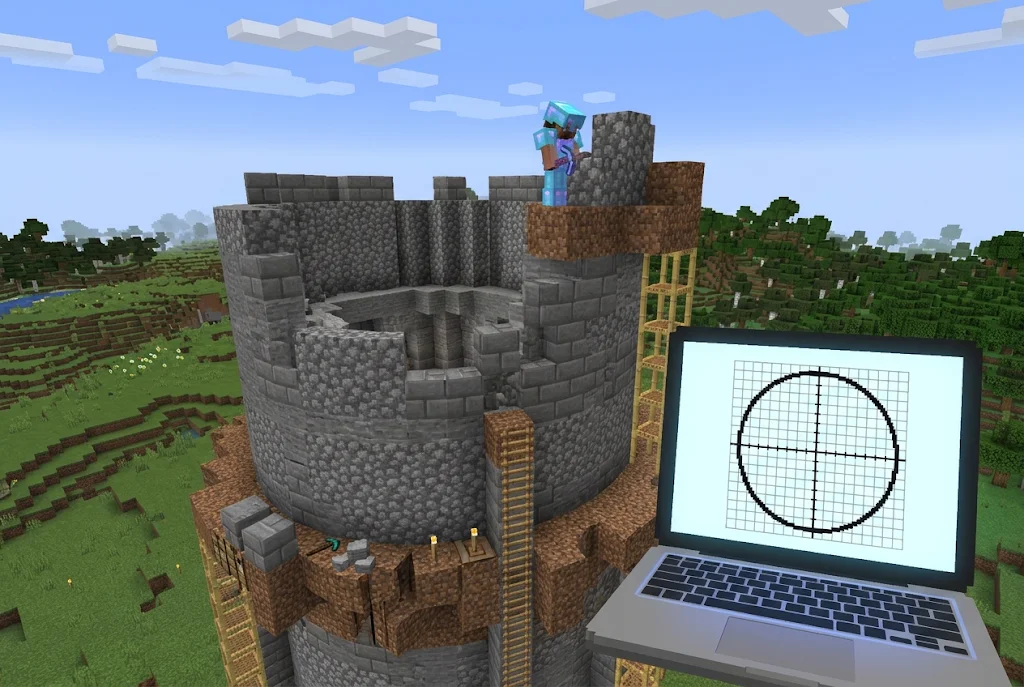
Minecraft has no curved blocks, so every round tower, dome or arena you’ve admired is really a carefully counted staircase of squares. That’s where a circle maker Minecraft tool comes in. You type a size, and it shows you exactly which blocks to place.
Short answer: For flat circles and ovals, Donat Studios’ Pixel Circle Generator and Omni Calculator’s Minecraft Circle Generator are the easiest free picks. For spheres and domes, use Plotz. If you play Java Edition in Creative or run a server, WorldEdit can place the whole shape for you with one command.
Below, you’ll find what each tool does well, where it falls short, and which one fits the build you’re planning.
What a Circle Maker Actually Does in Minecraft
There’s no “circle maker” block or item in the game, in Java or Bedrock. Some websites suggest otherwise, but the term simply refers to outside tools that convert a diameter into a block-by-block blueprint.
Every circle maker Minecraft players rely on works in roughly the same way:
- You enter a diameter (or width and height for an oval).
- You choose an outline style: thin, thick or filled.
- The tool draws a grid showing where each block goes, often with a block count.
Under the hood, most use a version of the midpoint circle algorithm, the same maths used to draw circles on pixel screens. That’s why these tools are sometimes called pixel circle generators. The result is consistent across Java and Bedrock, because the grid is identical in both editions.
The Best Circle Maker Minecraft Tools Compared
Here’s a quick side-by-side of each circle maker Minecraft option before the details. Features can change, so double-check on each site before you start a huge project.
| Tool | Best for | Shapes | Works on | Cost |
|---|---|---|---|---|
| Donat Studios Pixel Circle Generator | Quick circles and ovals | Circle, oval | Any browser | Free, open source |
| Omni Calculator Minecraft Circle Generator | Beginners who want block counts | Circle | Any browser | Free |
| Plotz | Spheres, domes and themed shapes | Sphere, ellipsoid, torus, more | Any browser | Free |
| WorldEdit | Instant placement in Creative or on servers | Cylinder, sphere, dome, pyramid | Java Edition (mod or plugin) | Free |
| Server-host generators (e.g. HostHavoc, WiseHosting) | Large builds and downloadable plans | Circle, ellipse, sphere, dome | Any browser | Free |
1. Donat Studios Pixel Circle Generator
This is the circle maker Minecraft builders have bookmarked for years, and it’s still around. Enter a width and height, keep “Force Circle” ticked for a true circle, or untick it for an oval. You can switch between thin, thick and filled styles.
Why builders like it: It’s fast, clean and doesn’t bury the grid under menus. The code is open source under the MIT licence, which is a nice sign of transparency.
Where it falls short: It’s a 2D tool only. For a dome, you’ll need to generate several circles yourself and stack them.
2. Omni Calculator Minecraft Circle Generator
Omni Calculator’s Minecraft circle generator is the friendliest option for newer players. You enter a diameter, and it draws the circle and tells you how many blocks you need. A 10-block circle, for example, takes 28 blocks as an outline.
The midpoint is marked where the two axes cross, which helps you line up the centre in your world. The page also includes ready-made charts for common sizes, handy if you’d rather glance at a reference than type numbers.
Best for: Survival players who want to know how many stacks to gather before they start.
Where it falls short: It’s built for flat circles. It won’t plan a sphere or dome layer by layer.
3. Plotz
When you outgrow a flat circle maker Minecraft builders use for floors and walls, Plotz is the name that comes up most often. It’s a free browser-based modeller that handles hollow spheres up to 256 blocks across, plus ellipsoids, a torus and themed builds like a lighthouse, an observatory and a giant snowman.
Its biggest strength is the layer viewer. You step through the sphere one horizontal slice at a time, so you always know which ring you’re working on. Many players keep Plotz open on a second screen or a tablet while they build.
Watch out for: The interface feels a little dated, and it’s built around hollow shapes. If you need a filled sphere, a newer generator may suit you better.
4. WorldEdit (Java Edition)
WorldEdit isn’t a blueprint tool. It builds the shape for you. Once it’s installed as a mod or server plugin, commands like these do the work:
//cyl stone 10 1creates a filled circle with a radius of 10 and a height of 1.//hcyl stone 10 5makes a hollow cylinder, useful for towers.//hsphere glass 12creates a hollow sphere.- Adding
-rraises the sphere so its bottom sits at your feet.
The WorldEdit generation documentation covers elliptical cylinders, spheres with different radii and more.
Keep in mind: WorldEdit needs Java Edition plus a mod loader or a server that allows it. It isn’t a fit for vanilla survival, Realms or most console players. A separate community project exists for Bedrock, but its syntax differs, so check its own documentation first.
5. Generators from Server Hosting Companies
Several Minecraft hosting companies now publish their own circle maker Minecraft pages, and some are surprisingly capable. HostHavoc’s circle tool supports circles and ellipses up to 500 blocks across, with a live block count and a PNG you can save. WiseHosting’s sphere generator includes a dome toggle and lets you download a schematic.
These are worth trying for very large builds. Just be aware they exist partly to promote hosting plans, so expect some ads or upsells around the tool.
How to Use a Circle Maker Minecraft Tool Step by Step
The steps below work with almost any browser-based generator. They assume you’re building a flat ring first, which is also the base layer of most towers and domes.
- Pick your diameter. Measure the space you have in-game first. Walk the width of the area and count blocks, or use the F3 debug screen on Java to read your coordinates at each edge.
- Choose the style. Thin outlines suit walls and towers. Filled circles suit floors, ponds and platforms. Thick outlines help when you want a wall two blocks deep.
- Note the block count. If the tool shows one, write it down and convert it into stacks of 64 so you know what to gather.
- Mark the centre in your world. Place a single marker block where the middle of the circle should be, then run guide lines out along both axes.
- Build one quarter. Follow the grid row by row for a single quarter, counting outward from the centre lines.
- Mirror the other three quarters. Copy the same row pattern on each side, then remove your guide lines.
- Stack or fill. For a tower, repeat the ring upward. For a floor, fill inward. For a dome, switch to a sphere tool and follow each layer.
Keep the generator open on a second screen, a tablet or your phone so you’re not switching windows every few blocks.
Which Circle Size Should You Start With?
Choosing a size is where many builds go wrong. Too small and the circle looks like a blocky plus sign. Too big and you run out of materials or space halfway through.
| Diameter | What it suits | Notes |
|---|---|---|
| 5 to 9 blocks | Wells, small fountains, pillars | Hard to make look round, so keep it as an accent |
| 11 to 15 blocks | Tower bases, small domes, garden beds | A comfortable size for a first attempt |
| 21 to 31 blocks | Arenas, large dome roofs, round halls | Plan materials carefully in Survival |
| 50+ blocks | Ring walls, stadiums, giant spheres | Use a tool that exports an image you can zoom into |
Larger circles look smoother from a distance because the steps between rows are a smaller share of the overall curve. Small ones always look a bit chunky, and that’s normal.
How to Choose the Right Tool for Your Build
The best circle maker Minecraft option for you depends less on the tool itself and more on what you’re making and how you play.
- A round floor, pond, well or tower base: Donat Studios or Omni Calculator.
- A dome roof or a planet-style sphere: Plotz or a host-made sphere generator with a dome option.
- A huge arena or ring wall (100+ blocks): a generator that handles large diameters and exports an image.
- Creative mode on Java, or your own server: WorldEdit saves hours.
- Playing on Switch, Xbox, PlayStation or mobile: stick with browser tools. Open the generator on your phone or laptop and follow along while you play.
Tips That Make Circular Builds Look Better
Even with a good circle maker, Minecraft builds can still come out lumpy. A few habits make the difference.
Pick Odd or Even Diameters on Purpose
An odd diameter (like 11, 15 or 21) has a single centre block. That makes it easier to line up doors, pillars or a beacon in the middle. An even diameter has a centre that falls between four blocks, which can look awkward if you need a single focal point. Decide this before you place anything.
Build the Outline Before You Fill It
Lay the full ring first, then fill the inside. If you fill as you go, one miscounted row can turn into a bulge buried under a finished floor.
Mark the Centre Lines
Run a temporary line of a contrasting block (wool or dirt works well) along both axes through the centre. Count outward from those lines and remove them once the ring is done.
Build One Quarter, Then Mirror It
A circle is symmetrical, so get one quarter right and copy the pattern to the other three. Double-checking a single quarter is far easier than checking the whole ring.
Budget Your Materials in Survival
Size grows fast. A hollow sphere 21 blocks across needs over a thousand blocks, and a filled one needs several thousand. Check the block count before you commit to that glass dome.
Common Mistakes to Avoid
Most problems with a circle maker Minecraft plan come from how it’s followed, not from the tool itself.
- Eyeballing small circles. Small circles are often the hardest to get right, because each misplaced block is more obvious.
- Treating a dome as one circle. A dome is a stack of circles that shrink as they rise. Follow each layer the tool gives you.
- Mixing up radius and diameter. Web generators usually ask for diameter, while WorldEdit uses radius. A radius of 10 gives a circle about 21 blocks wide.
- Trusting “secret” circle maker items. If a page claims there’s a hidden in-game circle maker, it’s misleading. Stick to well-known generators and official mod documentation.
Final Thoughts
You don’t need to pay for anything to build clean curves. Every circle maker Minecraft builders commonly use is free. Start with a free tool like Donat Studios or Omni Calculator for flat shapes, move to Plotz when you’re ready for domes and spheres, and try WorldEdit if you play Java in Creative or run a server.
Pick a small project first, like a 15-block fountain or a round watchtower base, and practise the outline-first method. Once that feels easy, larger arenas and domes come together much faster.
FAQ
Is there a circle maker built into Minecraft?
No. Minecraft doesn’t include a circle tool in any edition. Players use free websites that generate block plans, or mods like WorldEdit on Java Edition.
Does a circle maker Minecraft tool work for Bedrock Edition?
Yes. Browser-based generators only show you where to place blocks, so they work for Java, Bedrock, consoles and mobile. Mods like WorldEdit are a different story and depend on your edition.
What’s the best free tool for building a dome?
Plotz is a popular choice because you can view each layer individually. Some host-made sphere generators also include a dome setting that shows only the top half.
How many blocks does a Minecraft circle need?
It depends on the diameter and whether it’s hollow or filled. For example, a 10-block outline uses 28 blocks. Use a generator with a block counter to get the exact number before you start.