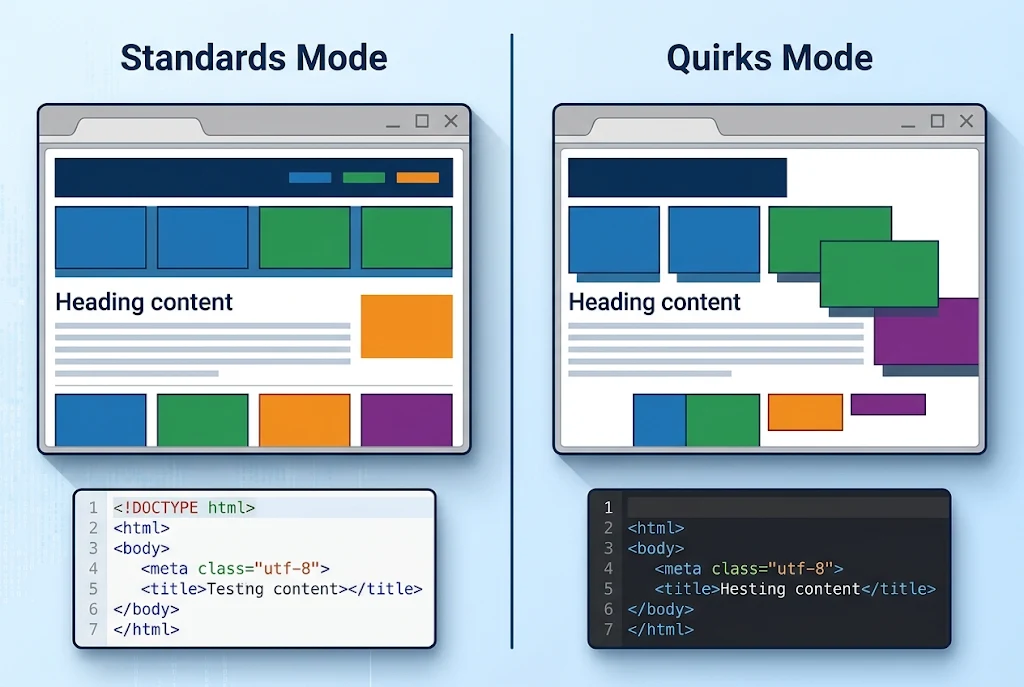
A browser picks its rendering mode by looking at the very first thing in your file. If it finds <!DOCTYPE html>, it renders the page in standards mode and follows modern HTML and CSS rules. If the doctype is missing, malformed, or one of a few outdated variants, it falls back to quirks mode, which copies the behavior of late-1990s browsers. A small group of old HTML 4.01 and XHTML 1.0 doctypes lands in a middle state called limited-quirks mode.
That choice happens once, while the page is being parsed and before your CSS loads. You can’t switch modes later with JavaScript. So the one line of doctype HTML at the top of your file decides how every other line gets interpreted.
The rest of this guide explains the three modes, the exact rules browsers use, what actually breaks in quirks mode, and how to check and fix a page that’s stuck in the wrong one.
What the Doctype Does in Modern Browsers
Older tutorials describe the doctype as a way to “tell the browser which HTML version you’re using.” That made sense in the HTML 4 era, when long doctypes pointed to DTD files that validators used to check your markup.
Browsers never really used that version information. According to MDN’s guide to quirks and standards modes, the only job <!doctype html> does is switch on no-quirks mode. HTML5 shortened the declaration to that single line because nothing else in the old syntax mattered to browsers.
A few quick facts clear up common confusion:
- It isn’t an HTML tag. It’s a declaration, so it has no closing tag.
- It isn’t case-sensitive.
<!DOCTYPE html>and<!doctype html>behave the same way. - There’s no version number.
<!DOCTYPE html5>isn’t valid, and browsers treat it as broken.
The Three Rendering Modes Explained
Every HTML page you open is in one of three modes. The names vary depending on where you read about them, which is why this topic often feels more confusing than it is.
| Mode | Other names | Usually triggered by | What changes |
|---|---|---|---|
| No-quirks | Standards mode | <!DOCTYPE html> | Follows current HTML and CSS specs |
| Limited-quirks | Almost-standards mode | HTML 4.01 or XHTML 1.0 Transitional/Frameset doctypes with a DTD URL | One quirk: how line height works around images |
| Quirks | Compatibility mode | No doctype, a broken doctype, or certain legacy doctypes | A long list of old browser behaviors |
Quirks mode exists for one reason: backward compatibility. Millions of pages built in the late ’90s were designed around the bugs of Internet Explorer 5 and Netscape 4. When browsers began following the CSS specs properly, those pages would have broken. So browser makers kept the old behavior available for pages without a modern doctype.
How a Browser Decides Which Mode to Use
The decision follows a fixed set of rules defined in the HTML parsing spec. Here’s the simplified order a browser works through:
- Is the page XHTML served as
application/xhtml+xml? If yes, it’s always standards mode, regardless of the doctype. - Is there any visible content before the doctype, or no doctype at all? If yes, it’s quirks mode.
- Is the doctype name something other than
html? Something like<!DOCTYPE html5>lands in quirks mode. - Does the doctype match a list of known legacy identifiers? Many old public identifiers force quirks mode.
- Is it an HTML 4.01 Transitional or Frameset doctype with a DTD URL, or an XHTML 1.0 Transitional/Frameset doctype? That’s limited-quirks mode.
- Anything else, including plain
<!DOCTYPE html>, gets no-quirks mode.
Doctype Examples and the Mode Each One Triggers
<!DOCTYPE html>
→ No-quirks (standards) mode

<!DOCTYPE HTML PUBLIC "-//W3C//DTD HTML 4.01//EN" "http://www.w3.org/TR/html4/strict.dtd">
→ No-quirks mode

<!DOCTYPE HTML PUBLIC "-//W3C//DTD HTML 4.01 Transitional//EN" "http://www.w3.org/TR/html4/loose.dtd">
→ Limited-quirks mode

<!DOCTYPE HTML PUBLIC "-//W3C//DTD HTML 4.01 Transitional//EN">
→ Quirks mode (the DTD URL is missing)

<!DOCTYPE html5>
→ Quirks mode (invalid name)

(no doctype)
→ Quirks mode
That fourth example catches many people out. Two doctypes that look almost identical produce different modes, and the only difference is whether the DTD URL is included.
What Actually Breaks in Quirks Mode
“Your layout may break” is vague, so here are the specific behaviors that change. The list comes from the quirks browsers keep for compatibility:
- Hex colors without a hash work.
color: ff0000;gets read as red. In standards mode, the browser ignores it. - Lengths without units are accepted.
width: 300;is treated as 300px. Standards mode drops the whole declaration. - Percentage heights behave differently.
htmlandbodystretch to fill the viewport, and percentage heights resolve in ways that don’t match the spec. - Tables don’t inherit fonts. Text inside a
<table>resets its font size, weight, and alignment instead of inheriting them from the parent. - Images in table cells get extra spacing. Line height is calculated the old way, which leaves gaps around inline images. This quirk also applies in limited-quirks mode.
A Realistic Example of the Problem
Imagine an old site whose stylesheet says .sidebar { width: 250; }. The page has no doctype, so it renders in quirks mode and the sidebar is 250px wide. Everything looks fine.
Then a developer adds <!DOCTYPE html> to clean things up. The browser switches to standards mode, ignores the unitless width, and the sidebar suddenly fills the whole row. The doctype didn’t break the page. It exposed CSS that was only working because of a quirk.
That’s why adding a doctype to an older site should always be followed by testing, not just a quick deploy.
Common Ways Pages End Up in Quirks Mode by Accident
Most developers know to include a doctype. Pages usually slip into quirks mode through less obvious routes:
- Server output before the doctype. A PHP warning, a stray echo, or debug text printed above
<!DOCTYPE html>counts as content, and that triggers quirks mode. - Broken templates. On WordPress and other CMS sites, the doctype usually lives in a header template such as
header.php. If a custom theme or plugin overrides it badly, every page that uses that template is affected. - Copy-pasted legacy doctypes. An HTML 4.01 Transitional declaration missing its DTD URL is still common in old code samples.
- Embedded iframes. Each document picks its own mode. An ad, widget, or old embedded page loaded in an iframe without a doctype renders in quirks mode, even when the parent page is in standards mode.
What about whitespace or HTML comments above the doctype? Internet Explorer 6 to 9 switched to quirks mode for these. Modern browsers handle blank lines and comments without changing mode, and they strip a byte order mark (BOM) before parsing. Still, keeping the doctype on line one costs nothing and avoids surprises in older tools and email clients.
Who Adds the Doctype When You Use a Framework or CMS?
Many people never type a doctype at all, because their tools write it for them. Knowing where it comes from tells you where to look when something goes wrong.
| Setup | Where the doctype usually comes from |
|---|---|
| WordPress | The active theme’s header template (often header.php, or the block theme’s template parts) |
| Next.js | The framework’s document rendering, so you rarely add it yourself |
| React with Vite or similar | The index.html file in the project root |
| Static site generators (Hugo, Jekyll, Eleventy) | The base layout template |
| Hand-coded HTML | Line one of each file |
The pattern is the same everywhere: one base template controls the doctype for many pages. That’s convenient when it’s correct and painful when it isn’t, because a single bad edit can push a whole site into quirks mode at once.
If you use a page builder or a hosted platform, you usually can’t edit the doctype directly. In that case, run the checks below. If a page reports quirks mode, contact the platform’s support with the result.
How to Check Which Mode Your Page Uses
You don’t have to guess. Any of these methods takes under a minute.
Use the Browser Console
Open DevTools (F12), go to the Console, and type:
document.compatMode"CSS1Compat"means no-quirks or limited-quirks mode."BackCompat"means quirks mode.
Note that limited-quirks mode also reports CSS1Compat. To tell the two apart, look at the doctype itself.
Run a Lighthouse Audit
Chrome’s Lighthouse has a Best Practices check that flags pages without a proper doctype. The web.dev doctype audit guide explains the warning and the fix.
Check Page Info in Firefox
In Firefox, press Ctrl+I (Cmd+I on Mac) to open Page Info. The General tab shows the render mode, either “Standards compliance mode” or “Quirks mode.”
View the Source
Press Ctrl+U to view the raw HTML. The first line should be <!DOCTYPE html>, with nothing printed above it. If your source looks correct but the console still reports BackCompat, the problem is usually server output or a template.
How to Fix a Page Without Breaking Its Layout
If a page turns out to be in quirks mode, this order of steps keeps the risk low:
- Add
<!DOCTYPE html>as the first line of the main template, not inside individual content files. - Remove anything printed before it, such as debug output, warnings, or stray characters from includes.
- Test your key pages on desktop and mobile: the homepage, a listing page, a single post, and any page with tables.
- Search your CSS for hex colors without
#and numbers without units, and correct them. - Check percentage heights. Full-height sections often need
html, body { height: 100%; }or viewport units such as100vh. - Confirm the result by running
document.compatModeagain and looking forCSS1Compat.
On a large or old site, try the change on a staging copy first. Most fixes are small, but they can be scattered across many stylesheets.
The Takeaway
Browsers choose their rendering mode from the first line of the document, and doctype HTML is the switch that controls it. Use <!DOCTYPE html>, make sure nothing prints before it, and you’ll get standards mode on every modern browser. If you’re updating an older site, treat the doctype as a small code change that needs testing, because the quirks it removes may have been holding parts of the layout together.
A good next step is to run document.compatMode on your own site’s main templates today. It takes seconds and tells you whether any of them have been in quirks mode all along.
Frequently Asked Questions
Does quirks mode affect SEO?
Not directly. Google doesn’t penalize pages for their rendering mode. Quirks mode can still cause layout shifts or broken mobile layouts, though, and those do affect user experience and page experience signals. It’s worth fixing for that reason alone.
Can JavaScript switch a page out of quirks mode?
No. The mode is set when the browser parses the document and stays fixed afterward. The only way to change it is to change the HTML the server sends.
Is limited-quirks mode something to worry about?
Usually not. Its only difference from standards mode is how line height is calculated around images, mostly inside tables. Even so, there’s no benefit to keeping an old Transitional doctype, so switching to <!DOCTYPE html> is the cleaner choice.
Do I need a doctype in HTML email templates?
Most email developers include one, and <!DOCTYPE html> is a common choice. Email clients vary widely and some strip or rewrite the doctype, so test your templates in the clients your audience actually uses.
Does every browser read the doctype the same way?
Yes, for current versions. Chrome, Edge, Firefox, and Safari all follow the same HTML parsing rules, so <!DOCTYPE html> gives you standards mode in each of them. The differences people remember come from old versions of Internet Explorer.