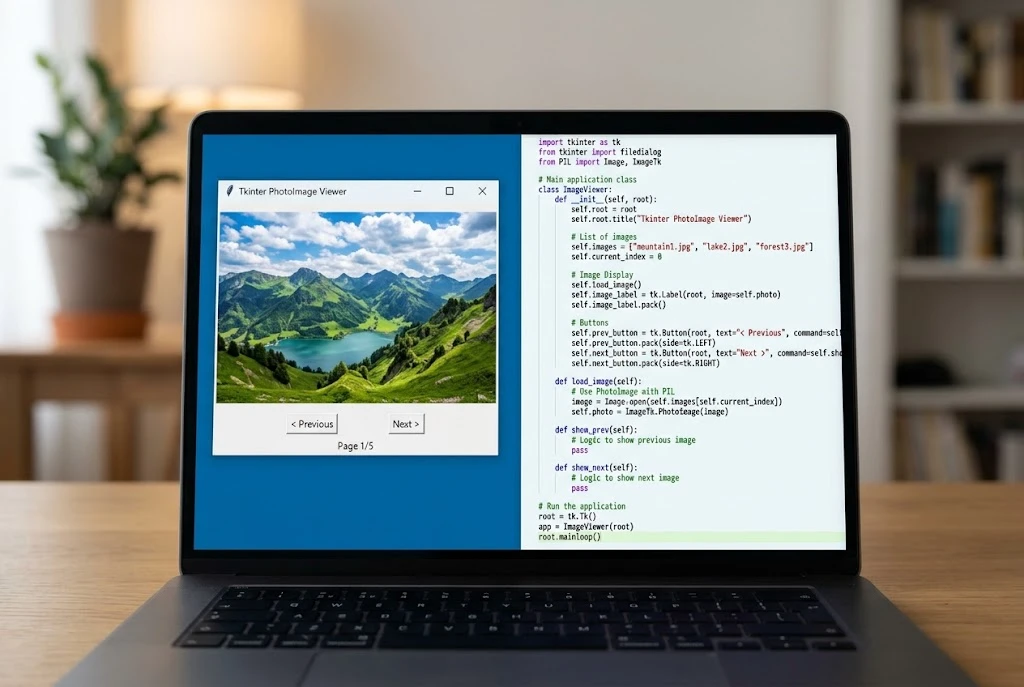
The PhotoImage class is Tkinter’s built-in way to load an image and show it in a Python desktop app. To build a viewer with it, you load a file with tk.PhotoImage(file=path), attach the result to a Label, and keep a reference to that object so Python doesn’t delete it. Add a folder picker and two buttons, and you have a working photo browser.
That’s all this project takes: about 80 lines of Python and no extra packages. It’s also a good way to learn the PhotoImage class, because a viewer forces you to deal with the problems real apps run into, like unsupported files and oversized photos. By the end, you’ll have an app that opens a folder, steps through its images with buttons or arrow keys, and shrinks large pictures to fit the window.
What the Finished Viewer Does
Here’s the feature list, so you know what you’re building:
- Opens a folder through your system’s normal folder picker
- Lists the PNG, GIF, PPM, and PGM files inside it
- Moves through them with Previous and Next buttons or the arrow keys
- Loops back to the first image after the last one
- Shrinks images that are too large for the window
- Shows the file name and position, like “beach.png (3 of 12)”
- Names a broken file in the status bar and keeps running
What You Need Before You Start
You need Python 3 with Tkinter installed. The standard Windows and macOS installers from python.org usually include it, but many Linux distributions package it separately. On Ubuntu or Debian, run sudo apt install python3-tk.
Then check your Tk version from a terminal:
bash
python3 -c "import tkinter; print(tkinter.TkVersion)"If you see 8.6 or higher, you’re set. The official Python Tkinter documentation says PNG support starts with Tk 8.6, so an older build would be limited to GIF, PGM, and PPM. On Windows, use python instead of python3 if the command isn’t found.
File Formats the PhotoImage Class Can Open
This trips up a lot of beginners, because the most common photo format isn’t on the list.
| Format | Standard Tkinter | With Pillow |
|---|---|---|
| PNG | Yes (Tk 8.6+) | Yes |
| GIF | Yes | Yes |
| PPM / PGM | Yes | Yes |
| JPEG | No | Yes |
| BMP, TIFF, WebP | No | Yes |
If you try to open a JPEG with the PhotoImage class alone, you’ll get an error like couldn't recognize data in image file. That message makes the file sound damaged, but the format just isn’t supported. Pillow fixes this, and there’s a short upgrade for it near the end.
The Complete Image Viewer Code
Save this as viewer.py. Read through it once, then we’ll go over the parts that matter.
python
import math
import tkinter as tk
from pathlib import Path
from tkinter import filedialog, messagebox

SUPPORTED = {".png", ".gif", ".ppm", ".pgm"}
MAX_WIDTH = 800
MAX_HEIGHT = 500


class ImageViewer:
    def __init__(self, root):
        self.root = root
        self.root.title("Simple Image Viewer")
        self.files = []
        self.index = 0
        self.photo = None  # keeps the current image alive

        self.image_label = tk.Label(root, text="Open a folder to begin", bg="#222", fg="white")
        self.image_label.pack(fill="both", expand=True)

        controls = tk.Frame(root)
        controls.pack(fill="x", pady=6)
        tk.Button(controls, text="Open Folder", command=self.open_folder).pack(side="left", padx=6)
        tk.Button(controls, text="Previous", command=self.previous).pack(side="left")
        tk.Button(controls, text="Next", command=self.next).pack(side="left", padx=6)
        self.status = tk.Label(controls, text="No folder loaded")
        self.status.pack(side="right", padx=6)

        root.bind("<Left>", lambda event: self.previous())
        root.bind("<Right>", lambda event: self.next())

    def open_folder(self):
        folder = filedialog.askdirectory(title="Choose a folder of images")
        if folder:
            self.load_folder(folder)

    def load_folder(self, folder):
        self.files = sorted(
            p for p in Path(folder).iterdir()
            if p.suffix.lower() in SUPPORTED
        )
        self.index = 0
        if self.files:
            self.show_image()
        else:
            messagebox.showinfo("No images", "No PNG, GIF, PPM or PGM files found.")

    def show_image(self):
        path = self.files[self.index]
        try:
            image = tk.PhotoImage(file=str(path))
        except tk.TclError as error:
            self.status.config(text=f"Can't open {path.name}")
            print(error)
            return

        scale = max(
            math.ceil(image.width() / MAX_WIDTH),
            math.ceil(image.height() / MAX_HEIGHT),
            1,
        )
        if scale > 1:
            image = image.subsample(scale)

        self.photo = image
        self.image_label.config(image=self.photo, text="")
        self.status.config(text=f"{path.name} ({self.index + 1} of {len(self.files)})")

    def next(self):
        if self.files:
            self.index = (self.index + 1) % len(self.files)
            self.show_image()

    def previous(self):
        if self.files:
            self.index = (self.index - 1) % len(self.files)
            self.show_image()


if __name__ == "__main__":
    root = tk.Tk()
    root.geometry("840x580")
    ImageViewer(root)
    root.mainloop()
Run it with python3 viewer.py, click Open Folder, and pick a folder with a few PNG files in it.
How the Code Works
Building the Window
The window has two areas. The Label at the top holds the picture, and fill="both", expand=True lets it take any extra space when the window grows. The Frame below it groups the three buttons and the status text along one row.
Using a Label for the picture is the simplest choice for a viewer. A Canvas is the better pick if you later want zooming, dragging, or drawing on top of an image, but it adds code you don’t need here.
Finding the Image Files
askdirectory() returns the chosen folder as a string, or an empty string if the user cancels. That’s why open_folder checks if folder: before doing anything else. The Python docs cover this and the other Tkinter file dialogs if you’d rather let people pick a single file.
load_folder then keeps only the files with a supported extension. Calling .lower() matters more than it looks: without it, HOLIDAY.PNG gets skipped, and you’d spend ten minutes wondering where it went.
One small quirk is that sorted() compares names as text, so img10.png lands before img2.png. Zero-padded names like img02.png avoid the problem.
Loading the Picture With the PhotoImage Class
All the image work happens in show_image, and this line is where the PhotoImage class comes in:
python
image = tk.PhotoImage(file=str(path))It reads the file into memory and creates an image object that Tk can draw. The try block catches tk.TclError, which is what you get for a corrupt file or one with a misleading extension. Without it, a bad file would leave the screen unchanged, with only a traceback in the terminal to explain why.
When a file fails, the last good image stays on screen and the status bar names the problem. Press Next and you move on normally.
Why self.photo Matters
This one line prevents the most common PhotoImage class bug:
python
self.photo = imageAccording to the Python documentation, Tk doesn’t keep its own reference to an image. Once the last Python reference is deleted, the image data goes with it, and the widget shows an empty box.
Here’s the classic broken version:
python
def show_broken(root):
    image = tk.PhotoImage(file="photo.png")
    tk.Label(root, image=image).pack()
No error appears. The Label is created, then image is deleted when the function ends, and the picture never shows up. Storing it on self keeps it alive as long as the viewer needs it. Each new image then replaces the old one, so a long browsing session doesn’t pile up every photo in memory.
Shrinking Large Images to Fit
The PhotoImage class has no resize method that accepts a target size. You get subsample(), which shrinks an image by keeping every Nth pixel, and zoom(), which enlarges it by repeating pixels. Both need whole numbers. Passing 2.5 raises TclError: expected integer but got "2.5".
So the code works out how many times too large the image is in each direction, rounds up, and uses the bigger result. Here’s what that does with an 800 × 500 limit:
| Original size | Width ratio | Height ratio | Scale used | Displayed size |
|---|---|---|---|---|
| 1600 × 1000 | 2.0 | 2.0 | 2 | 800 × 500 |
| 2000 × 600 | 2.5 | 1.2 | 3 | 667 × 200 |
| 640 × 480 | 0.8 | 0.96 | 1 | 640 × 480 |
Look at the second row. A true fit would be 800 × 240, but since 2.5 isn’t allowed, the image drops to 667 × 200. It’s a real limit of this approach: pictures can come out noticeably smaller than the space available, and skipped pixels can leave fine lines looking jagged.
Moving Between Images
The % operator handles the looping in both next and previous. If you’re on the last of 12 images (index 11), (11 + 1) % 12 gives 0, which takes you back to the start. Going backward from index 0, (0 - 1) % 12 gives 11, since Python’s modulo result takes the sign of the divisor.
The if self.files: check stops an arrow key press from raising an error before a folder is open.
Add JPEG Support and Smoother Resizing With Pillow
Most phone and camera photos are JPEGs, so this is the first upgrade worth making. Pillow’s ImageTk module provides its own PhotoImage, which works anywhere Tkinter expects an image. Install it with pip install pillow, then make three changes.
Add the import at the top and widen the file list:
python
from PIL import Image, ImageTk

SUPPORTED = {".png", ".gif", ".ppm", ".pgm", ".jpg", ".jpeg", ".bmp", ".webp"}
Then replace the whole loading and scaling section of show_image, from try down to the end of the if scale > 1: block, with this:
python
try:
    with Image.open(path) as picture:
        picture.thumbnail((MAX_WIDTH, MAX_HEIGHT))
        image = ImageTk.PhotoImage(picture)
except OSError as error:
    self.status.config(text=f"Can't open {path.name}")
    print(error)
    return
thumbnail() keeps the proportions and fits the image to the limit at any size, so that 2000 × 600 picture now fills the full 800 pixels of width. You can delete import math too, since nothing uses it anymore. The self.photo = image rule still applies, because Pillow’s object can be garbage collected in exactly the same way.
The rest of the code stays as it is, though you may want to reword the “No images” message to match the longer format list. This Pillow version is also the better base for a real photo app, because the PhotoImage class on its own will always be limited to whole-number scaling.
PhotoImage Class Methods Worth Knowing
The viewer only uses a few methods, but the PhotoImage class has more that are handy once the basics work. These are the ones you’re most likely to reach for next:
| Method | What it does | Where you might use it |
|---|---|---|
width(), height() | Return the size in pixels | Working out a scale, as the viewer does |
subsample(x) | Returns a smaller copy | Fitting large images into a window |
zoom(x) | Returns a larger copy | Enlarging pixel art or tiny icons |
copy() | Returns a duplicate | Keeping an original while you change a version |
get(x, y), put(data, to) | Read or set pixels | Simple filters and generated images |
write(filename) | Saves the image to a file | Exporting an edited result |
Note that subsample() and zoom() return new objects and leave the original alone. That’s why the viewer writes image = image.subsample(scale) instead of calling the method on its own.
Common Problems and Quick Fixes
| What you see | Likely cause | Fix |
|---|---|---|
| Blank area, no error | Image reference was deleted | Store the PhotoImage class object on self |
couldn't recognize data in image file | JPEG, unsupported format, or corrupt file | Use Pillow, or check the file itself |
couldn't open "...": no such file or directory | Wrong path or wrong working directory | Use a full path or build it with pathlib |
expected integer but got "2.5" | Decimal passed to subsample() or zoom() | Round to a whole number, or use Pillow |
No module named 'tkinter' | Tkinter isn’t installed | Install python3-tk on Linux |
Where to Take It Next
Your viewer now covers the essentials of the PhotoImage class: loading, displaying, scaling, and keeping images alive. That’s most of what everyday Tkinter image work comes down to. Good next steps are a delete or rename button, a slideshow built with root.after(), or rescaling when the window is resized. Pick one, since each of them will teach you something different about how Tkinter handles events.
If you plan to go further with the PhotoImage class, the community-maintained TkDocs PhotoImage reference lists every available method, including transparency_get() and copy_replace().
Frequently Asked Questions
Can the Tkinter PhotoImage class open JPG files?
Not on its own. The PhotoImage class opens PNG, GIF, PGM, and PPM files. For JPEG, install Pillow and use ImageTk.PhotoImage instead, which works with the same widgets.
Why does my Tkinter image not show up?
The usual cause is a lost reference. If the image is stored in a local variable, Python deletes it when the function ends, leaving a blank widget. Save it to an instance attribute such as self.photo.
What’s the difference between tk.PhotoImage and ImageTk.PhotoImage?
tk.PhotoImage is the PhotoImage class built into Tkinter, and it needs no installation. ImageTk.PhotoImage comes from Pillow, which adds formats like JPEG and WebP and lets you resize images with Pillow’s tools before displaying them.
How do I resize an image in Tkinter?
The PhotoImage class offers subsample() to shrink and zoom() to enlarge, both by whole-number factors. For an exact size, resize the image in Pillow first, then pass it to ImageTk.PhotoImage.