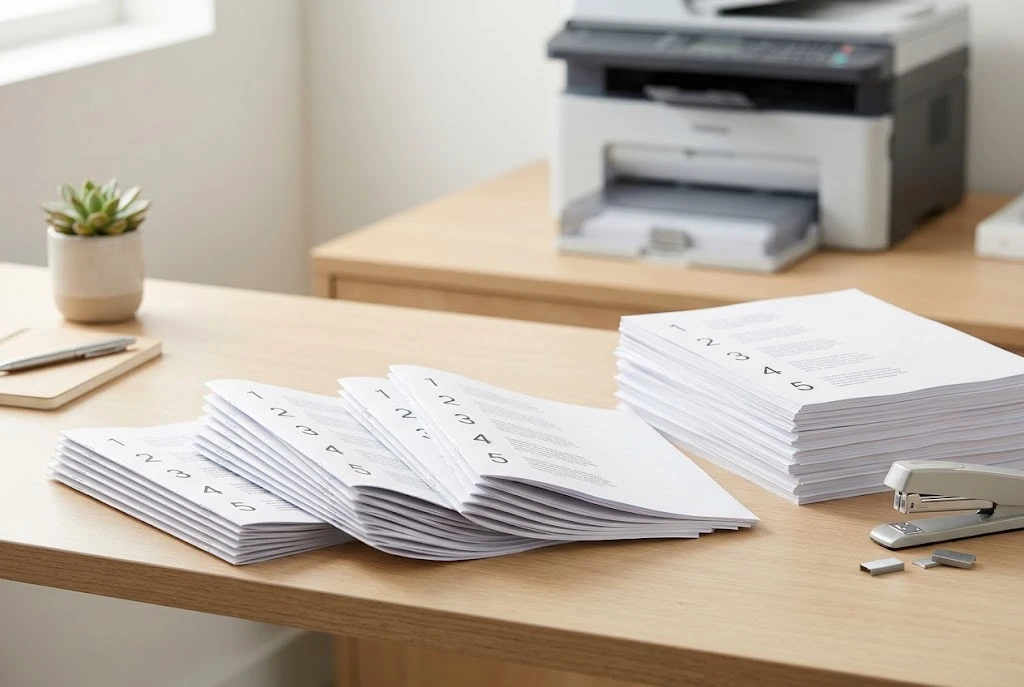
You need 25 copies of a 10-page report, and the print window asks whether you want them collated. That one setting decides whether you get 25 finished reports or 10 piles of loose pages.
Collate printing means your printer produces each copy as a complete set, in page order, before it starts the next copy. If you print three copies of a four-page document, you get pages 1, 2, 3, 4, then 1, 2, 3, 4, then 1, 2, 3, 4. With collation off, you get three copies of page 1, then three of page 2, and so on.
So if you’ve been wondering what collate means when printing, that’s the whole idea: sets instead of stacks. The rest of this guide covers when to use it, when to skip it, where to find the setting, and what to do if the pages still come out in the wrong order.
What Does Collate Mean When Printing?
The word is older than printers. Merriam-Webster defines collate as “to assemble in proper order”, especially arranging sheets for binding. That was once a manual job, with someone walking along a table and picking up one page from each pile.
Today, your computer and printer handle that sorting for you. The easiest way to remember the collate meaning in printing is this:
- Collated means complete sets, ready to hand out.
- Uncollated means stacks of identical pages, ready for sorting by hand.
One detail often gets missed: the setting only matters when you print two or more copies of a document with two or more pages. A single copy comes out the same either way, and so does a one-page flyer printed 100 times. If the option looks grayed out or seems to do nothing, that may be why.
Collated vs Uncollated: A Simple Example
Say you’re printing three copies of a four-page meeting packet. Both options produce 12 printed pages. Only the order changes.
| Collated | Uncollated | |
|---|---|---|
| Page order | 1-2-3-4, 1-2-3-4, 1-2-3-4 | 1-1-1, 2-2-2, 3-3-3, 4-4-4 |
| What lands in the tray | Three complete packets | Four stacks of matching pages |
| Sorting needed afterward | None | Yes, by hand |
| Best for | Reports, manuals, handouts | Hand assembly, separate inserts |
| Paper and ink used | Same | Same |
That last row answers a common worry. Collating doesn’t use extra paper or ink, because you’re printing the same pages in a different sequence.
The difference shows up in your time. Hand-sorting 3 packets takes a minute. Hand-sorting 200 copies of a 12-page handbook could eat up an afternoon, and it’s easy to miss a page along the way.
When Should You Use Collate Printing?
Leave collate printing on whenever each person needs the full document in order. It’s the right choice for most everyday multi-page jobs, including:
- Office work: Board reports, proposals, employee handbooks, and meeting agendas.
- School: Exam papers, course packets, and multi-page homework assignments.
- Events: Programs, registration packets, and speaker notes.
- Stapled or bound documents: Anything that will be stapled, put in a binder, or bound at a print shop.
Collate printing matters most when the pages look alike. Tax forms, contracts, and data-heavy reports can hide a misplaced page, since nothing about page 7 obviously says it doesn’t belong after page 5. Page numbers help, but only if someone checks them.
Collate Printing Examples From Everyday Jobs
Examples make the choice easier, so here are three common situations and the setting that fits each one.
A teacher printing a test. A class of 28 needs a five-page exam. That’s 140 pages, and with collate printing on, the teacher gets 28 finished sets to staple and hand out. With it off, she’d have five stacks and a long lunch break of sorting.
A small business sending a proposal. A two-person firm needs six copies of a 16-page proposal for a client meeting. Collation is the clear pick, since a shuffled page in front of a client looks careless. It’s also worth reading one full set before the meeting, because the printer won’t catch a typo or a missing chart.
A community group printing a program. This one has a twist. If the program is a single sheet, printed on both sides and folded, collation doesn’t matter, because each copy is only one sheet. Once the program grows to two or more sheets, you’ll want collated sets.
That last example is worth remembering. What counts is whether a copy has more than one page to keep in order, not how many copies you’re printing.
Terms People Often Mix Up With Collating
Print menus put several similar-sounding options close together, and they do different jobs.
- Sort: Usually another word for collate, especially on copiers.
- Duplex: Printing on both sides of the sheet. It has no effect on set order.
- Staple or finish: Fastens the pages after printing. Stapling needs collated sets, or you’d staple identical pages together.
- Reverse order: Prints the last page first, which can fix a backward stack.
- Copies: The number of sets or repeats, and the setting that makes collation matter in the first place.
Knowing these apart helps when collate printing seems off, since the real cause is often one of its neighbors in the menu.
When Uncollated Printing Is the Better Choice
Turning off collate printing isn’t a mistake. It’s useful when pages are headed to different places or will be assembled in a custom way.
Pages That Go to Different People or Stations
A teacher running four classroom stations might want 30 copies of each worksheet in its own stack, one per table. Collated sets would mean pulling every packet apart again.
The same applies to a training day where each session gets one page, or an office where one form goes to HR and another goes to accounting.
Hand-Built Packets With Mixed Materials
Maybe a welcome kit includes a printed letter, a brochure, a colored insert, and a sign-up form. If only some of those pieces come from your printer, separate stacks make assembly easier because you can lay them out in a row and work down the line.
Different Paper for Different Pages
Say page 1 needs letterhead and the other pages go on plain paper. Printing each page as its own run can be simpler than asking the printer to switch trays in the middle of each set. Print shops often handle this for you, so ask before doing it yourself on a big order.
How to Turn On Collate Printing
The setting lives in the print window of whatever app you’re using. The labels vary a little, and collation can be on by default, so check it instead of assuming.
| Where you’re printing from | Where to find it |
|---|---|
| Microsoft Word (Windows) | File > Print > Settings, then choose Collated or Uncollated |
| Adobe Acrobat or Reader | Print window, near the copies setting, look for Collate |
| Google Chrome or Google Docs | Print window, set copies above 1, then look for Collate |
| Mac apps | File > Print > Paper Handling > Collate Sheets |
| Office copier | Copy settings, often listed as Sort or Collate |
Apple’s guide describes Collate Sheets on a Mac as printing a complete document from first to last page before starting another copy. On some Mac apps, you may need to click Show Details before you see the Paper Handling section.
Copiers are the place where people get tripped up most, because “sort” usually means the same thing as collate. “Group” or “stack” usually means the uncollated version. Labels differ by brand, so a quick look at the machine’s on-screen help is worthwhile.
Why Your Pages Still Come Out Wrong
Sometimes you turn on collate printing and the printer seems to ignore it. These are the usual causes, starting with the easiest to check.
The App Setting and Printer Setting Disagree
Your app has a collate option, and the printer driver may have its own in Printer Properties. If they conflict, you can get unexpected results. Set both the same way, then run a short test.
The Printer or Driver Handles It Differently
Collation can happen in two places. Adobe explains the difference between host collation and printer collation: with host collation, the app arranges the pages before sending them, while with printer collation, the printer does that work. Adobe also notes that the driver decides which method is used, so a driver change can alter the result on the same printer.
If collate printing fails from one app, try these steps:
- Print the same file from a different app, such as saving a Word file as a PDF and printing the PDF.
- Update or reinstall your printer driver from the manufacturer’s website.
- Try a test from the printer’s own copy function, if it has one.
If the problem happens in one app only, that app’s settings are the likely cause. If it happens everywhere, look at the driver or the printer.
The Sets Are in Order but Backward
This one isn’t a collation failure at all. Some printers put pages out face up, so each set can end up with the last page on top. On a Mac, Sheet Order controls this. In other apps, look for a reverse-order option in the print settings.
Double-Sided Copies Run Together
Double-sided jobs add a trap to collate printing when a document has an odd number of pages. The last sheet of a three-page document has a blank back, and on some setups, the next copy could start in the wrong spot. Before you print a large duplex job, test two copies and check that each set starts on a fresh sheet.
A Quick Check Before a Big Print Run
A two-minute test can save a box of paper. Before you print 100 copies of anything, do this:
- Set the copies to 2, not 1. A single copy can’t show you whether collate printing works.
- If the document is long, print only the first three or four pages.
- Check the page order, the side order, and the first page of the second set.
- Staple or bind one sample if the final copies will be finished that way.
- Then print the full run.
This matters most on shared office printers, where the last person’s settings can stick around in the driver.
Does Collate Printing Cost More at a Print Shop?
At home or in the office, collate printing costs nothing extra. At a commercial printer, it’s commonly built into the price of multi-page work, though this varies. Large or complex jobs may be priced differently, especially if they involve hand assembly, inserts, or several paper types.
When you request a quote, say how you want the finished product to arrive, for example, “100 collated, corner-stapled sets.” That wording leaves less room for confusion than simply asking for 100 copies.
The Bottom Line
Collate printing gives you complete, ordered sets without any hand sorting, and it’s usually the right choice for a multi-page document. Turn it off when pages need to go to different places or be assembled by hand.
Next time you print multiple copies, check the setting, run a two-copy test on anything big, and let the printer do the sorting.
Frequently Asked Questions
Should I Select Collated or Uncollated?
Choose collated if each person needs a full document in page order. Choose uncollated if you want stacks of identical pages for hand assembly or separate distribution.
Does Collate Printing Use More Ink or Paper?
No. You’re printing the same number of pages either way, so only the order changes.
Does Collation Matter for One Copy?
No. A single copy prints the same with the setting on or off.
Is Collate Printing Slower?
It can be on some printers, depending on the size of the job and how the printer handles it. For most home and office jobs, you probably won’t notice much difference, and it’s still quicker than sorting by hand.
What Does “Sort” Mean on a Copier?
On most copiers, “sort” means the same thing as collate: complete sets in page order. Check your machine’s help screen, since labels vary by brand.